Access the URL in a Report
min read - Updated on Nov 15, 2026Each record in a Report can lead back to the place where its feedback was written. When the data of a Report has a URL for its records, the date of each record on the Content page is a link, and clicking it opens the original page, such as an Amazon product page, an app store listing or a review site, in a new browser tab.
Opening the source is useful when you want to verify a piece of feedback, read it in its original context or continue an investigation on the platform it came from. This article explains where the URL of a record comes from and how to open it from the Content page of a Report.
Sign in to Kimola and open a Report from Reports in the main menu. The Report needs a URL for its records, which the next section describes.
Where the URL of a Record Comes From
A record has a URL only when the data of the Report included one. A Report gets its URLs in one of two ways.
From a dataset. When you create a Report from a file, or from data that opens in the same column steps (such as a Google Sheets spreadsheet), the Sheets & Columns step lets you choose a Url Column, the column that holds the unique web URL of each row. The Text Column is the only required column, so the Url Column is yours to choose.
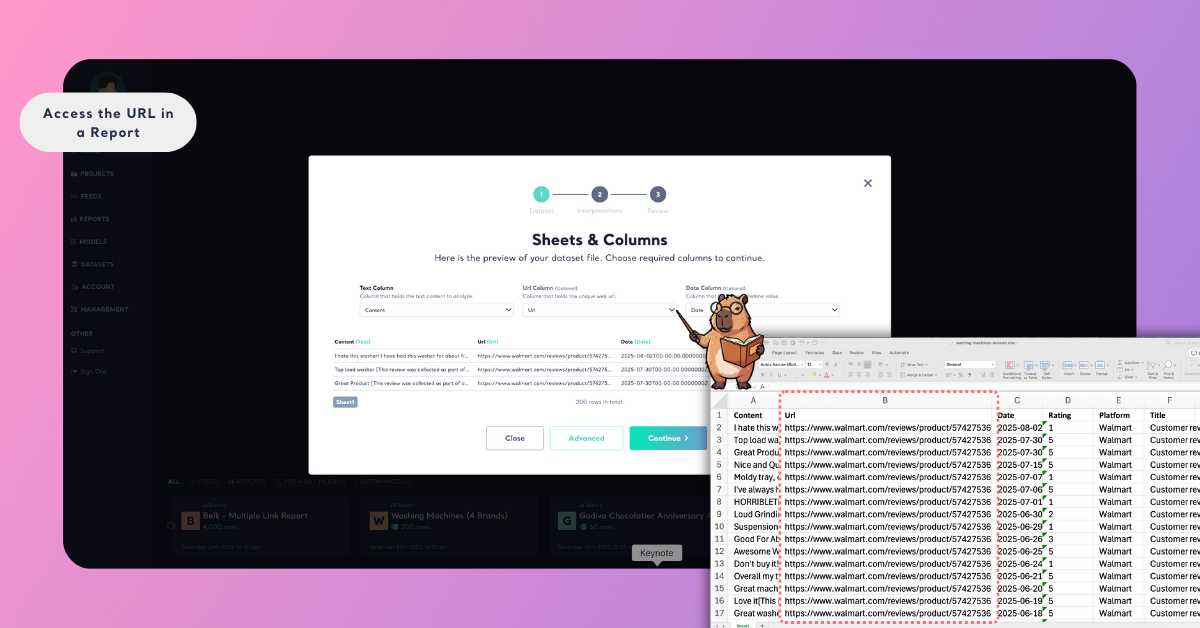
From links. When you create a Report by adding links, Kimola collects the reviews from the pages and stores the URL of each one with the record. You don't choose anything for this.
Step 1: Open the Content Page
Select Content in the menu of the open Report. The page lists the records of the Report as cards, each with its text, its column values, the labels Kimola gave it and its date.
Step 2: Find the Record
Scroll to the record you want to check, or narrow the list first. The search box above the records finds a record by the words in its text, and the filters below the Filters card narrow it by theme, sentiment, column value or period. See Filter Records in Reports for every way to filter.
To check a theme, filter the records to that theme first and open a few of its sources. Reading the original reviews is the quickest way to see whether the label fits the feedback under it.
Step 3: Click the Date of the Record
For a record that has a URL, the date on its card is a link. Click the date, and the original page opens in a new browser tab. The Report stays open in the tab you came from, so you can go back to your place in the list.
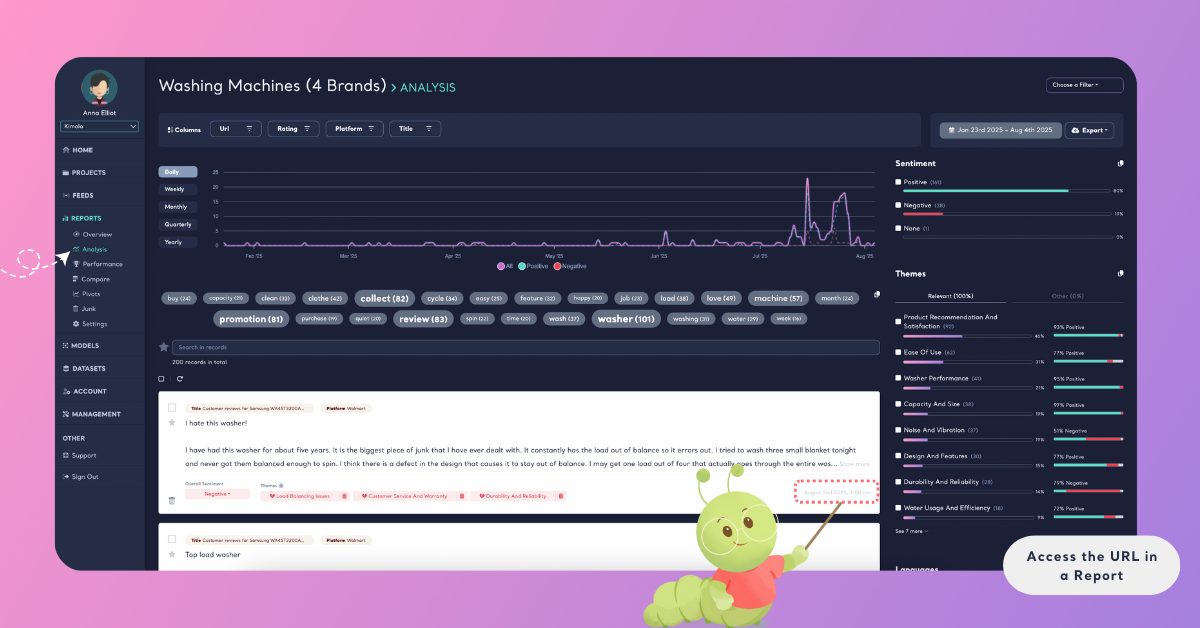
If a record has no URL, its date is shown as plain text and can't be clicked. This happens when the data of the Report had no URL for that record.
Check Feedback in Its Original Context
The source page connects the structured analysis in Kimola with the feedback as its author published it. Use it to confirm that a record says what its labels suggest, to read the rest of a review or the page around it, and to follow up on the platform itself.
A hotel chain analyzes the reviews of several travel sites in one Report. Filtering the records to the theme Room Cleanliness shows a negative record about a stained carpet. Clicking its date opens the review on the travel site where a guest wrote it, so the team can read the whole review before it decides what to raise with the hotel.