Activate Your Account
min read - Updated on Nov 04, 2026When you sign up for Kimola, Kimola sends an activation email to the address you signed up with. Open the email and follow its instructions to activate your account. If the email doesn't arrive, check your spam folder, and if it isn't there either, send a new one with Re-send! in the activation window.
You need to have signed up for Kimola and have access to the email address you signed up with.
The activation window tells you where the email went: "We've sent an activation email to [your email address]. Please check your inbox and spam folder for the email, and follow the instructions to activate your Kimola account." It appears whenever you try something that needs an activated account: when you upload a file or paste a link on Home to create a Report (Activate your account to continue), when you open a Report (Activate your account to access the report) and when you open a Space (Activate your account to access the space). Sample reports also open only after your account is activated. Once your account is active, Getting Started with Kimola walks you through your first Report.
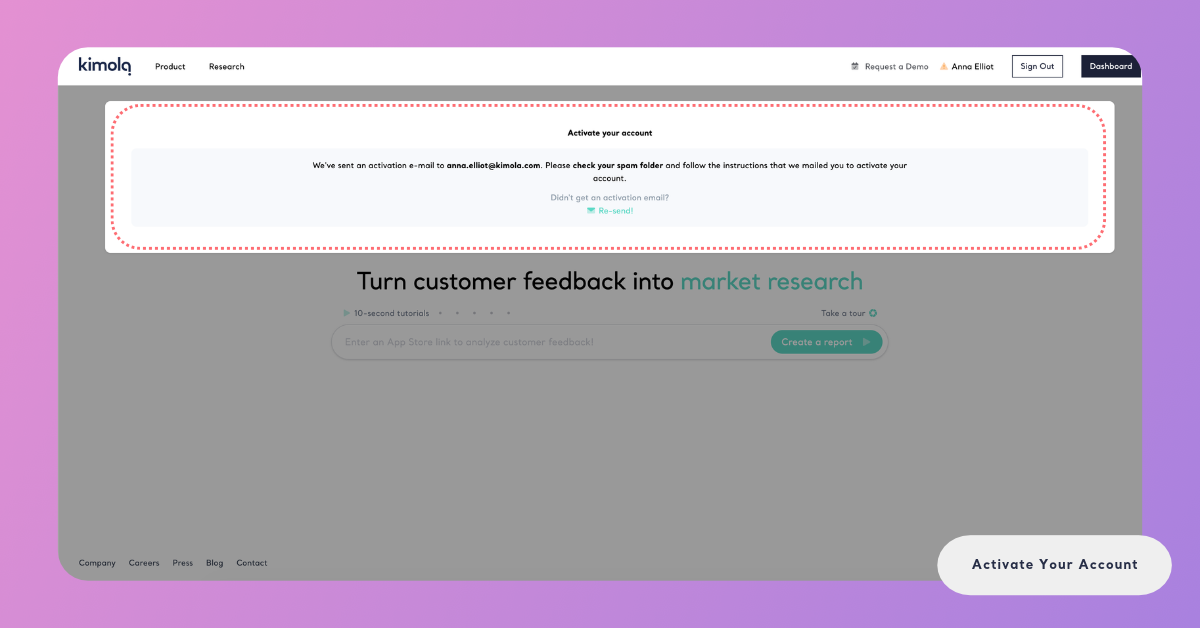
Check Your Inbox
Kimola sends the activation email right after you sign up, to the address you entered. Look for it in your inbox first. If it isn't there, check your spam or junk folder, because email services sometimes move automated emails there. If you find it in spam, mark it as not spam, so that later emails from Kimola reach your inbox.
If you signed up with a work address, your company's email filter may hold automated emails before they reach your mailbox. Your IT team can check whether the email was held and release it.
When you find the email, open it and follow its instructions. Your account is then activated, and Kimola no longer shows the activation window.
Resend the Email
If the email isn't in your inbox or your spam folder, or you deleted it, Kimola can send it again. Open the Activate your account window again, for example by opening a sample report or uploading a file on Home. Under “Didn't get an activation email?” click Re-send!.
After clicking Re-send!, check your inbox and spam folder for the new activation email. Open it and click Activate Now! to activate your account.
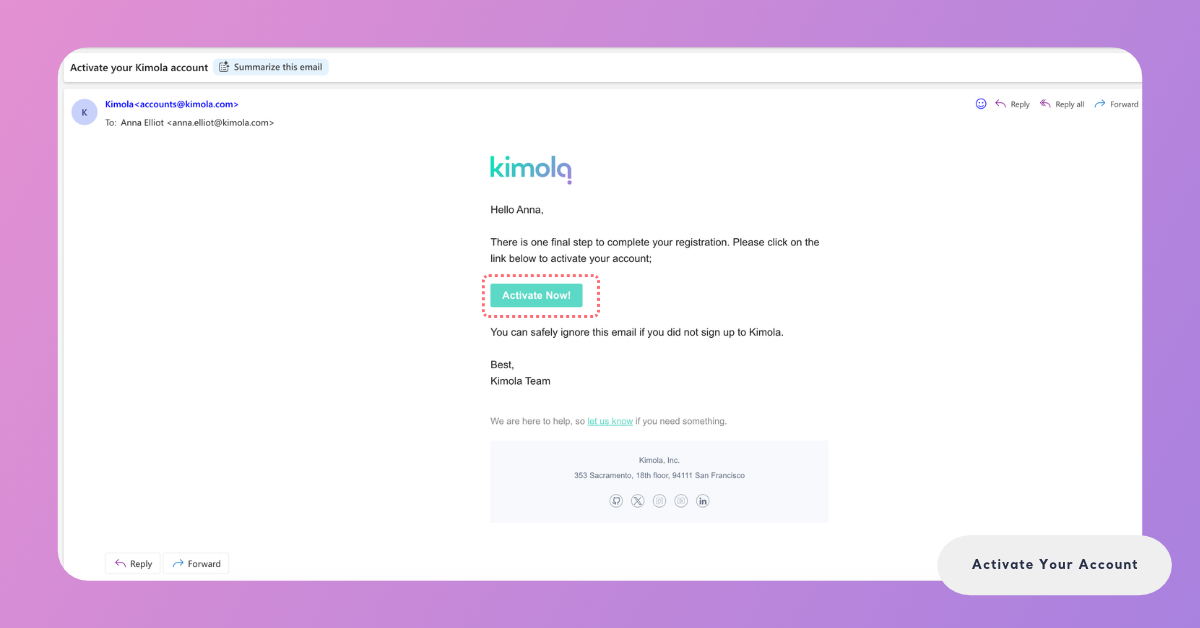
If the email still doesn't arrive, check the address in the activation window as described below.
Check Your Email Address
The activation window shows, in bold, the address Kimola sent the email to. Compare it with the address you meant to use. If it has a typo, such as a missing letter or a wrong domain, the email went to an address you can't read, and Re-send! sends the new email to that same address.
If the address is wrong, contact Kimola support so that the address of your account can be corrected.