View Your On-Premises License
min read - Updated on Nov 05, 2026In Kimola On-Premises, the License page shows what type of license your organization holds, whether it’s active, and when it expires. It also shows the organization the license was issued to and the contacts listed on the license.
The License page is available only in Kimola On-Premises. Sign in to your organization's Kimola installation before you start.
Open the License Page
Kimola On-Premises is used under a license agreed between your organization and Kimola, and the License page is where your team reads its details. Sign in to your organization's Kimola installation and click License in the left menu. The page opens with the line "See your licence information." and lists the details of your license.
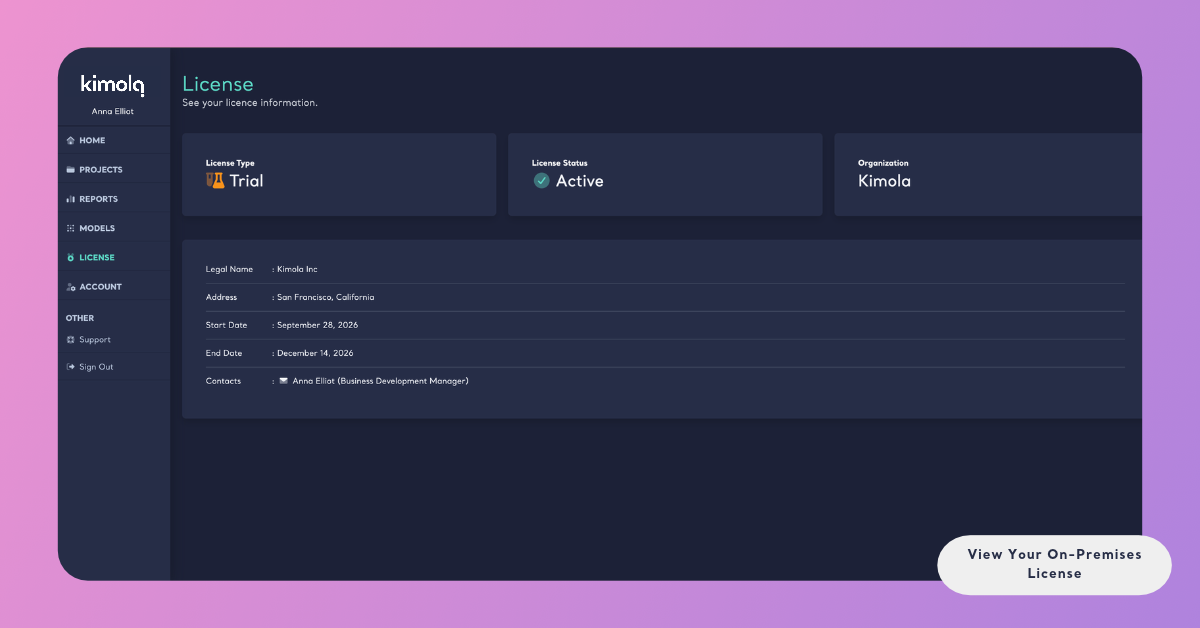
What the License Page Shows
The page lists the following details from your organization’s license agreement with Kimola. Your IT, procurement, or legal team can use them when reviewing the agreement.
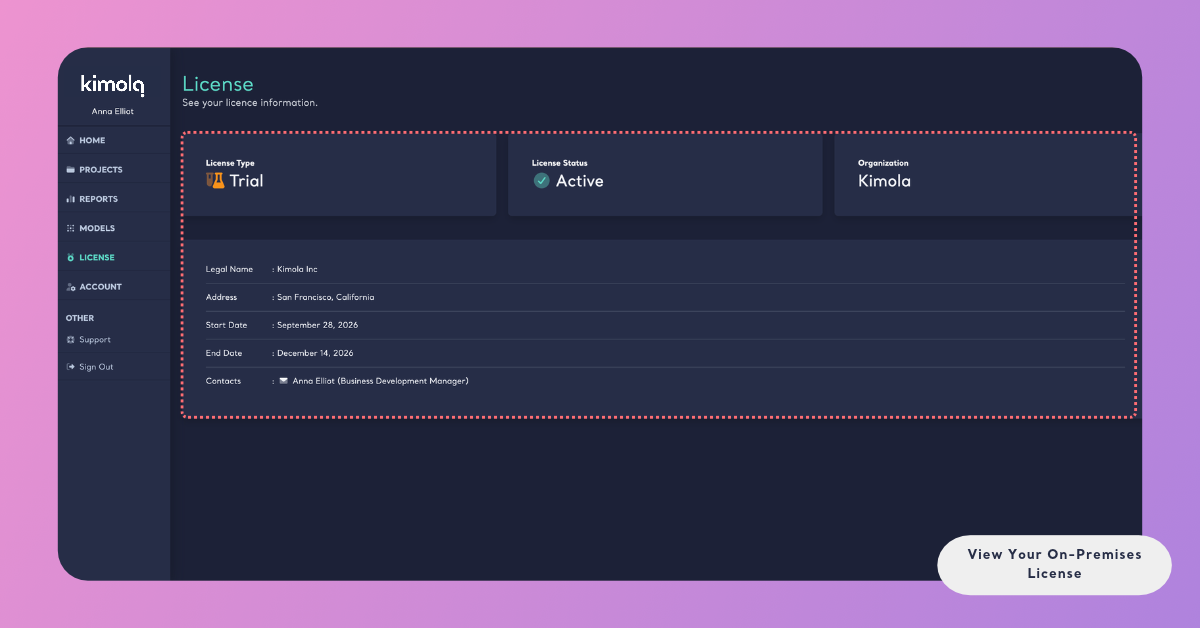
- License Type is the kind of license your organization holds, as agreed with Kimola.
- License Status shows whether the license is currently in effect.
- Organization is the name of the organization the license is issued to.
- Legal Name is the organization's registered legal name, as written in the license agreement.
- Address is the organization's address on the license.
- Start Date is the date the license starts.
- End Date is the date the license ends.
- Contacts lists the contact people recorded for the license.
The License page is there to read. Changes to the license, such as its dates or contacts, are made with the Kimola team.
Renew or Update Your License
Your license covers the period between its Start Date and its End Date. Check the End Date to plan your renewal before the license expires. To renew the license or update details such as its dates or contacts, contact the Kimola team.