Manage Profiles
min read - Updated on Nov 11, 2026A Profile is an organization your Action Plans are written for: your company, a brand of yours, or a client you work for. You manage Profiles in Account › Profiles, where you can create a Profile, edit its name and description, delete it and search the Profiles of your team. A Profile's name and a few words about what the organization does, what it sells and to whom make the actions of its plans specific to that organization.
Profiles are used by the Action Plans of Reports, which are available in every package, and by the Action Plans of Spaces, which are available in the Enterprise package. Profiles are shared across your team: everyone in your team can use and edit them.
Sign in to Kimola and open Account › Profiles to see the Profiles your team has already created. If you’re creating a new Profile, have the organization’s name ready. You can also prepare a short description of what it offers and who it serves to help Kimola tailor its Action Plans.
What is a Profile?
Every Action Plan is written for a Profile. When you start a plan, you choose the Profile first, and Kimola reads the feedback from that organization's point of view: what it should fix, protect or build on, how it can win the demand a rival leaves open, or where the opportunities in its market are. The side and the goal are chosen for each plan. The Profile stays the same, so one Profile can be used for many plans, from different Reports and Spaces, with different sides and goals.
A Profile has two fields. The name is the organization's name. The description says what the organization does, what it sells and to whom. With the name alone, Kimola knows what the organization is called and little else, and the actions can read like advice for any company in its category. A few words about the organization's offer and its customers let Kimola write actions that fit that organization.
Who a Profile stands for depends on how you work. A company that writes plans about itself usually needs one Profile. A company with several brands can create one Profile per brand, so each brand's plans speak to its own customers. An agency or a research firm can create one Profile per client it writes plans for.
On the Profiles page, every Profile shows its name, its description, who created it and when, and when it was last updated. Edit and Delete are next to it.
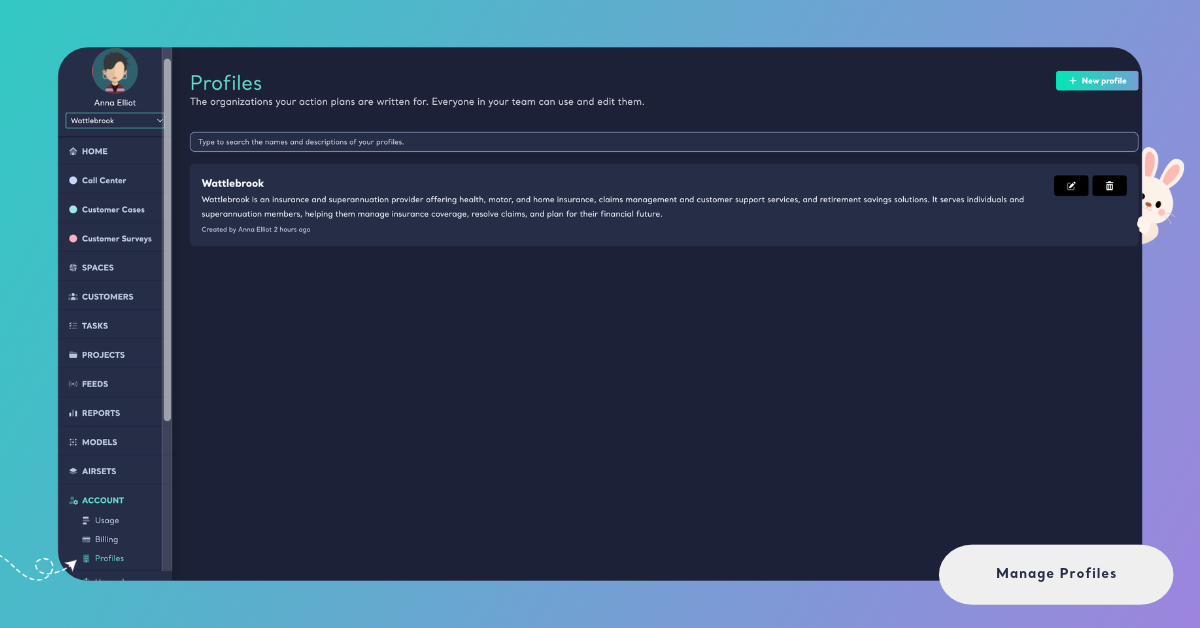
Profiles and Profile are two different items in the Account menu. Profiles holds the organizations your Action Plans are written for. Profile holds your own account details.
Profiles holds the organizations your Action Plans are written for. Profile, in the same menu, holds your own account details.
Create a Profile
You can create a Profile on the Profiles page or while you start an Action Plan. Both ways save the same kind of Profile, and it appears in both places.
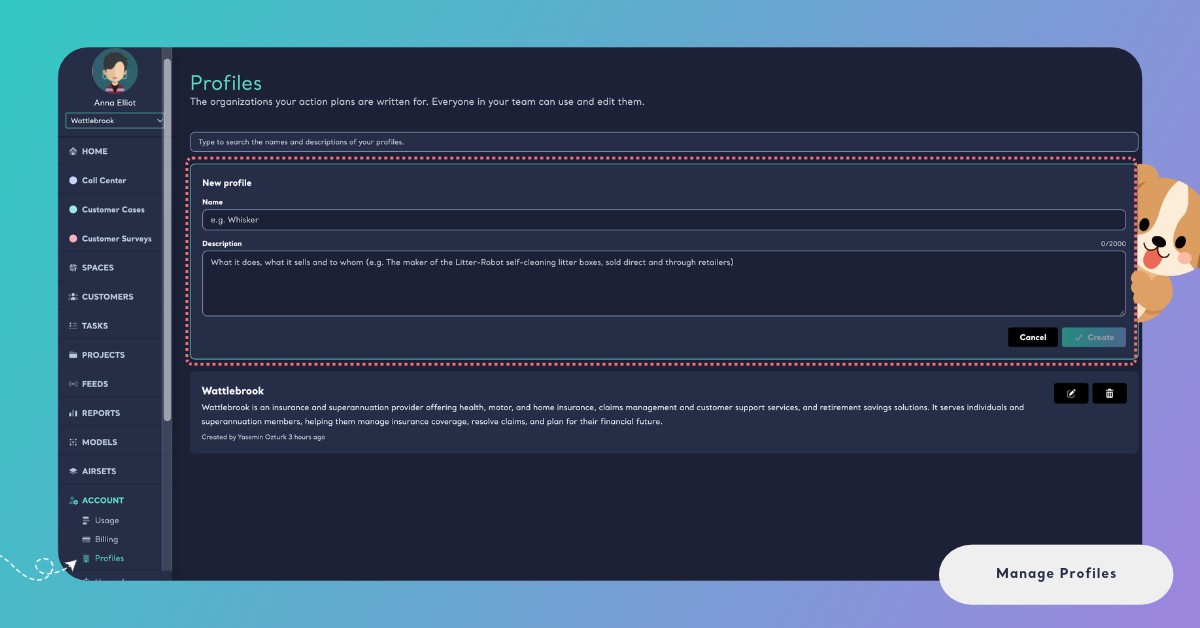
On the Profiles page, click New profile. A form opens at the top of the list with two fields:
- Name: the organization's name, up to 250 characters.
- Description: what the organization does, what it sells and to whom, up to 2,000 characters. A counter above the field shows how many characters you have used.
Click Create. The button is available once the Profile has a name; the description is optional. Kimola confirms with "Acme Foods is ready for your action plans.", with your Profile's name in place of Acme Foods, and the new Profile appears at the top of the list. To close the form without saving, click Cancel.
A Profile without a description is marked "No description: a few words about what it does and to whom make its action plans sharper." You can add the description later with Edit.
A Profile can be created without a description, but a few words about what it does and to whom make its action plans sharper.
When your team has no Profile yet, the page says No profile yet, explains what a Profile is and offers Create a profile, which opens the same form.
To create a Profile while you start a plan, click New profile in the first step of the Action Plan wizard and fill in the same two fields. Clicking Next saves the Profile and moves on to the next step. When your team has no Profile yet, New profile is already open in that step. See Create an Action Plan.
Edit or Delete a Profile
You can edit a Profile to correct its name or to say more about the organization in its description. Click Edit next to the Profile. The form opens in its place, titled with the Profile's name (for example "Edit Acme Foods"), with the current name and description filled in. Change them and click Save. Kimola confirms with "The profile is saved." To close the form without changes, click Cancel.
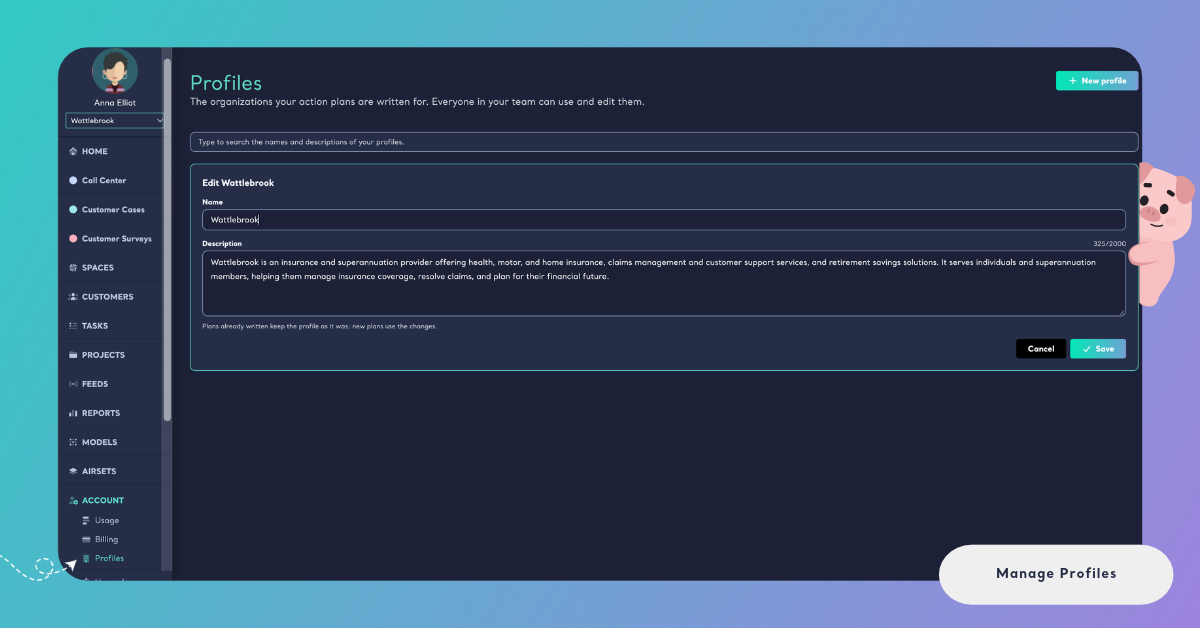
Editing a Profile doesn't change the plans already written for it. As the note under the form says, "Plans already written keep the profile as it was; new plans use the changes." To get actions that use the new description, create a new plan.
Plans already written keep the Profile as it was; only new plans use the changes.
To delete a Profile, click Delete next to it. Kimola asks "Are you sure you want to permanently delete Acme Foods? Action plans already written for it are kept.", with the Profile's name in place of Acme Foods. Click Yes, delete it. Kimola confirms with "Acme Foods is deleted." and removes the Profile from the list.
A deleted Profile can't be restored, and it is no longer offered when anyone in your team starts a plan. The Action Plans already written for it stay in their Reports and Spaces, with all their actions and ratings.
Deleting a Profile can't be undone, and it removes the Profile for your whole team. Plans already written for it are kept.
Profiles are shared, so any change you make, an edit or a deletion, applies to everyone in your team. If Kimola can't save or delete a Profile, it says "The profile could not be saved, please try again." or "The profile could not be deleted, please try again." Try again in a moment.
Find a Profile
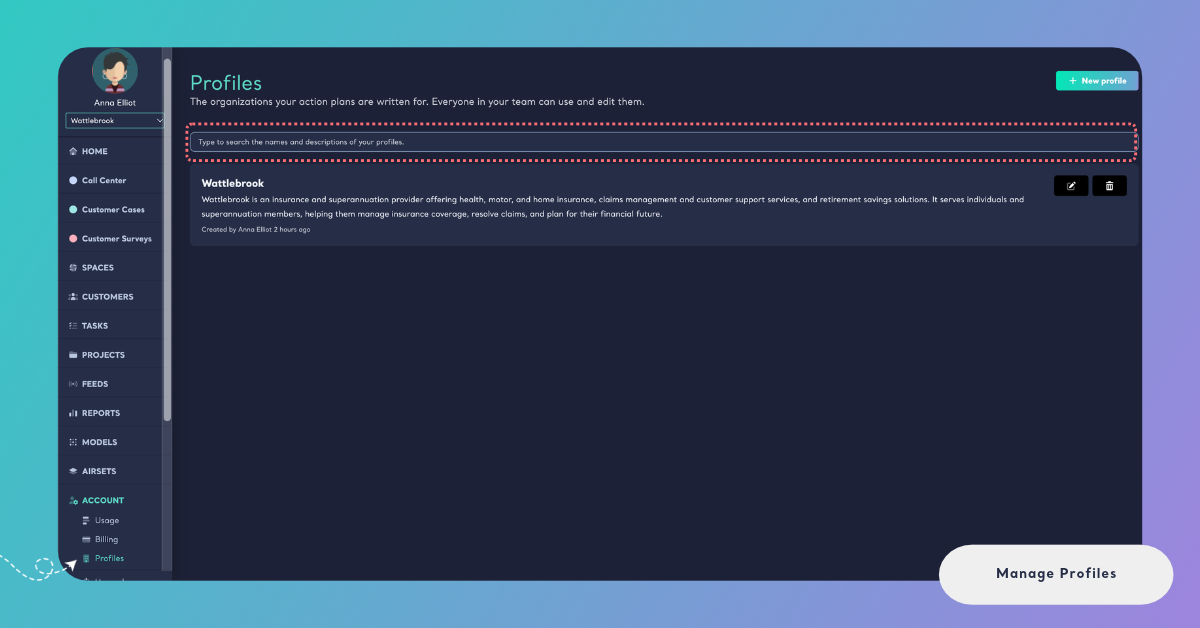
When your team has many Profiles, for example one per client, you can search them. Type in the search field at the top of the list, "Type to search the names and descriptions of your profiles." The list narrows to the Profiles whose name or description contains what you typed, shortly after you stop typing.
When no Profile matches, the page says "No profile matches", followed by your search. Clear the field to see every Profile again. The search is kept in the page's address, so it stays when you reload the page.
An agency writes plans for 30 clients, each with its own Profile. Searching for coffee lists every Profile whose name or description mentions coffee, such as a coffee shop chain and a maker of espresso machines.