What is an Action Plan?
min read - Updated on Nov 05, 2026An Action Plan is a set of up to 12 concrete actions that Kimola writes from the customer feedback in a Report or a Space, for an organization you choose. Each action says what to change, for whom and when, who owns it and how to see it worked. Kimola checks every action against the feedback before it shows it: every figure comes from the feedback, every quote is in a customer's own words, and the actions the evidence doesn't back are dropped.
A Report or a Space tells you what customers say: the themes they mention, how they feel, the answers of each Dimension and the Signals where one group or one period stands apart. Deciding what to do about it is a separate step, and it is often where research stops. An Action Plan takes that step with you. You tell Kimola who the plan is for, where that organization stands in the feedback and what the plan should focus on, and Kimola turns the findings into changes that a team can own and measure.
To create an Action Plan, you need an activated Kimola account, analyzed customer feedback, and a Profile for the organization the plan is for.
If you don’t have a Kimola account yet, sign up first. For help activating it, see Activate Your Account.
Your feedback can come from a Report whose analysis is complete or a Space with at least one classified file. If you don’t have a Report yet, see Create a Report by Uploading a Custom Dataset or Create a Report by Adding Links. If you want to use a Space and haven’t set one up yet, see Create a Funnel and Create a Space.
Action Plans are found under Actions in the menu of a Report and in the menu of a Space.
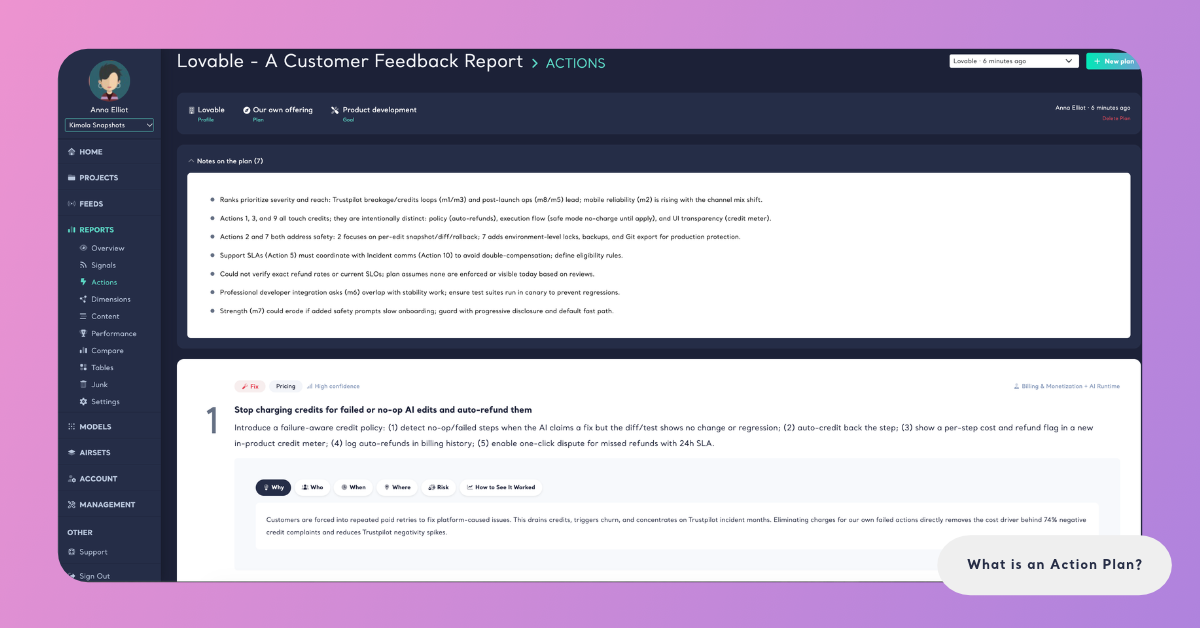
How Action Plans Work
You start a plan from the Actions page with New plan, or with Create an action plan when there is no plan yet. You choose the Profile the plan is written for, confirm where it stands in the feedback and choose what the plan is for: Balanced (what matters most, of every kind), Product development, Positioning, Competitive strategy, Campaign or Customer experience. You can also describe the situation in your own words and choose the language the plan is written in. The steps are in Create an Action Plan.
Kimola then writes the plan in four steps, and the Actions page shows each step while it runs:
- Forming hypotheses. Kimola reads the Report or the Space and tests where problems, needs and strengths concentrate.
- Reading the evidence. It reads the feedback behind each hypothesis and sizes what actually happens.
- Writing the actions. It turns each mechanism it found into a concrete change, with its owner and metric.
- Checking every claim. It checks the figures, sources and quotes of every action against the evidence. An action that the evidence doesn't back firmly enough is dropped, and so is an action that repeats another one.
A plan reads the feedback together with the Signals found in it, so an action can build on a tested finding rather than on a single comment. Writing a plan takes about 5 to 7 minutes, and you can leave the page meanwhile. If no action passes the checks, the plan isn't generated and the page says "This plan could not be generated". A narrower goal or a description of the situation may help.
If a plan could not be generated, try a narrower goal or describe the situation.
Which Side of the Feedback
The same feedback leads to different actions depending on whose feedback it is. A complaint about your own product is something to fix, while the same complaint about a rival's product is demand you can win. That is why every plan starts from the side the Profile is on, and Kimola offers three:
- Our own offering. The Report is about us. The plan says what to fix, protect and build on.
- A rival. The Report is about a rival. The plan says how to win the demand it leaves open.
- Our market. The Report is about our category. The plan says where the opportunities are.
Kimola reads the Report and suggests the side for the Profile you chose, marked "This is a guess, please check it." When the feedback covers several brands or products, you can also pick the column that names them and its values, so the plan knows which part of the feedback the side refers to.
A Report holds the reviews of five robot vacuum brands, with a Brand column. A maker of one of the brands writes a plan for the side Our own offering, with its own brand picked in the column, and gets what to fix, protect and build on. From the same Report, a plan for the side A rival, with a competitor's brand picked, says how to win the customers who complain about that brand's app pairing and short battery life.
What an Action Contains
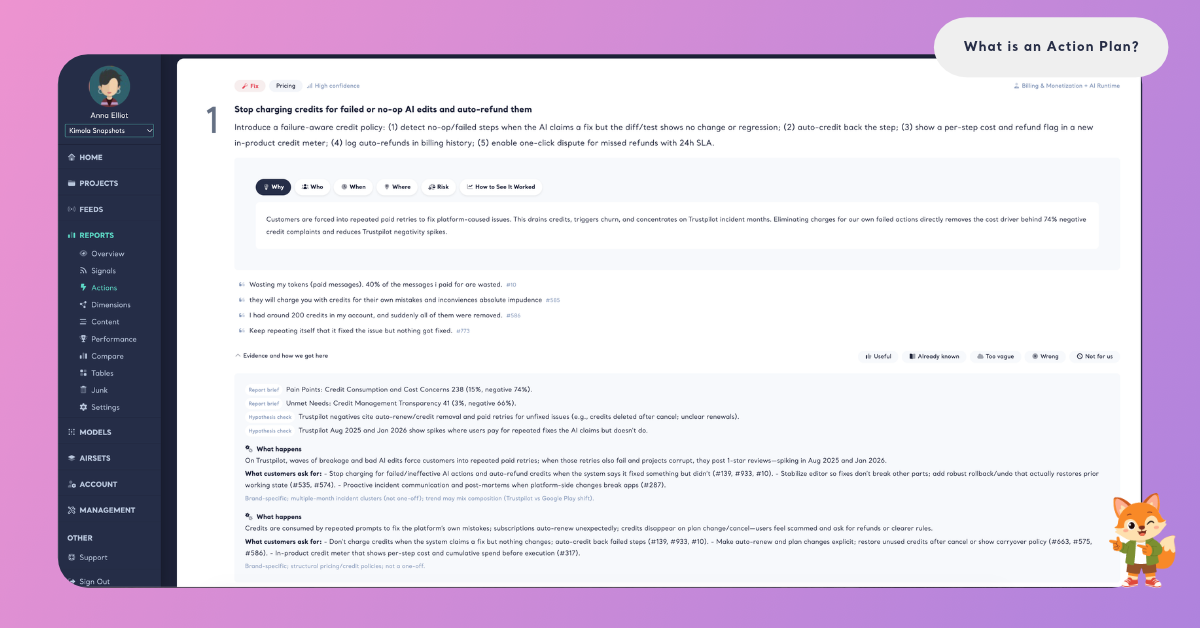
Each action of a plan is a card. At the top of the card are the action's confidence (High confidence, Medium confidence or Low confidence) and its owner, the team that would carry out the change. Below them, the action's title and the change itself: what to do, concretely enough to start on it.
The card then answers the questions a team asks before it acts. Why gives the reason behind the action, Who, When and Where say which customers, at which moment and at which touchpoint it concerns, Risk says what to watch out for, and How to See It Worked names the metric that shows whether the change made a difference. Quotes from the feedback, in customers' own words, follow.
Evidence and how we got here opens the reasoning behind the action: the hypotheses Kimola tested with their figures, What happens (the mechanism the evidence shows) and What customers ask for: in their own words. See Actions in Reports for every part of the card.
For a food delivery app, an action might read: show the courier's live position and a new estimate as soon as an evening order passes its promised time. Its owner is the product team, Who is customers ordering at the evening peak, When is the moment the promised time passes, and How to See It Worked is the share of evening-order reviews that mention late deliveries.
Every action can be rated: Useful, Already known, Too vague, Wrong or Not for us, with an optional note on why. See Rate Actions in an Action Plan.
Action Plans in Reports and Spaces
Action Plans are written the same way in Reports and in Spaces: the same choices, the same four steps, the same action cards and the same ratings. The menu item is Actions in both. What differs is the feedback a plan reads and what you can do with its actions.
A Report's Action Plans are available in every package. A plan reads the records of the Report, and a Report can have several plans, for example one for each Profile or each goal. Each side (Our own offering, A rival, Our market) can be chosen. See Actions in Reports.
A Space's Action Plan reads every classified file of the Space, as its Signals do. A Space is your own channel of feedback, so its plans are always about your own offering: Our own offering is preselected, and Kimola may still suggest a column of the Space that names you. The language of the plan starts as the language of the Space's Funnel. The Actions item appears in a Space's menu once the Space has classified feedback.
Action Plans in Spaces are available in the Enterprise package. They are also available in Kimola On-Premises.
A Space's plan stays as it was written. When files are classified after it, the plan says how many, for example "3 files were classified after this plan was written: its actions do not read them.", and offers Write a new plan. Nothing rewrites a plan by itself.
In a Space, every action card also offers Make a task, which turns the action into a Task for a teammate, linked back to its plan. Reports don't make Tasks. See Actions in Spaces.
Action Plans and Profiles
Every Action Plan is written for a Profile. A Profile is an organization your Action Plans are written for: your company, a brand of yours, or a client you work for. It has a name and a short description of what the organization does, what it sells and to whom. The plan reads the feedback from that organization's point of view, so the description is what makes its actions specific rather than generic.
A Profile named Brightdesk with the description "Makes help desk software for small online shops, sold by monthly subscription" lets a plan write actions for a software company that serves small shops, rather than for any help desk tool.
Profiles are shared across your team: everyone in your team can use and edit them. You can create one in Account › Profiles, or while you start a plan. Deleting a Profile keeps the plans already written for it. See Manage Profiles.