Create an Action Plan
min read - Updated on Nov 12, 2026You can create an Action Plan from a Report or a Space to turn its customer feedback into up to 12 concrete actions for your company, a rival or your market. A short wizard asks who the plan is for, where that organization stands in the data, what the plan is for and, if you like, the situation you are facing. Kimola then forms hypotheses, tests them on the feedback, writes the actions and checks every claim against the evidence. Writing a plan takes about 5 to 7 minutes, and every action comes with its owner, a metric and how to see it worked.
You start from Actions in the menu of a Report or a Space. When the Report or Space has no plan yet, the page says "Turn this report into an action plan" (or "Turn this space into an action plan") and offers Create an action plan. Once a plan exists, New plan at the top of the page opens the same wizard, next to the list where you switch between earlier plans.
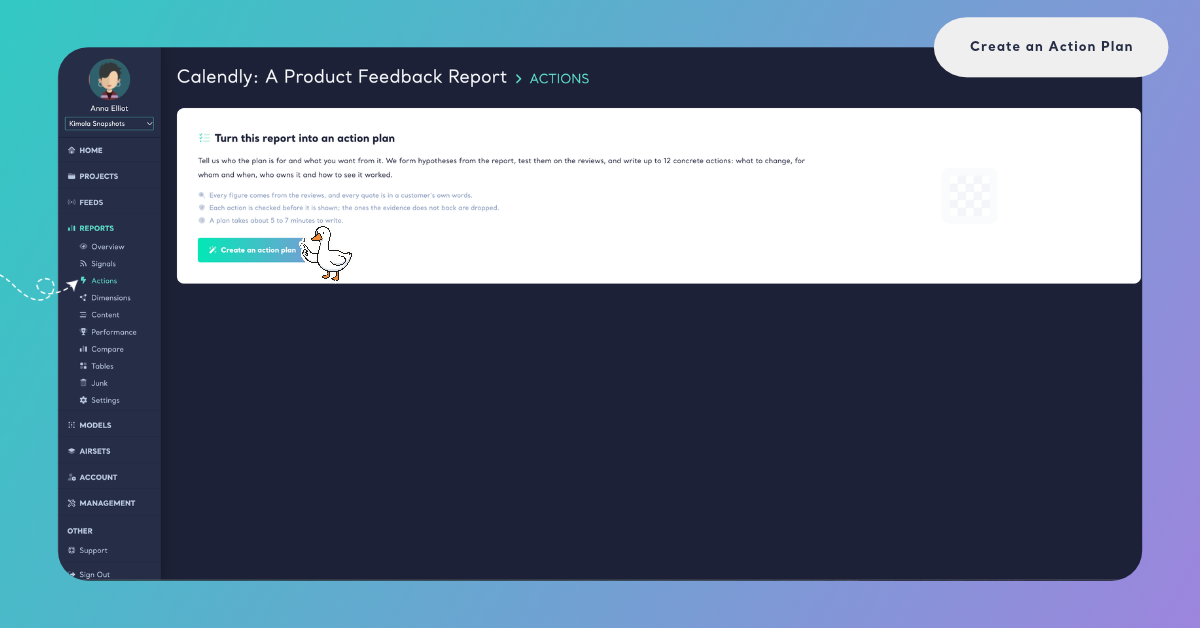
To create an Action Plan, sign in to Kimola. If you’re new to Kimola, sign up and follow Activate Your Account.
Use a Report whose analysis is complete or a Space with at least one classified file. To create a Report, see Create a Report by Uploading a Custom Dataset or Create a Report by Adding Links. To set up a Space, see Create a Funnel and Create a Space. For your first upload, see Add Files to a Space.
Action Plans in Reports are available in every package. In Spaces, they’re available in the Enterprise package and in Kimola On-Premises.
Step 1: Choose or Create a Profile
The first step, Action Plan, asks who the plan is for: "Select an existing profile, or add a name and a short description to create a new one and get tailored recommendations." A Profile is the organization your action plans are written for: your company, a brand of yours, or a client you work for. Each Profile is listed with its name and description. Select one and click Next.
To write for an organization that has no Profile yet, click New profile and fill in two fields. The name is the organization's name. The description says briefly what it does, what it offers and who it serves, for example "Produces and sells self-cleaning litter boxes directly and through retailers". A few words about what the organization does and to whom make the actions specific to it rather than general advice for its category. When nobody in your team has created a Profile yet, New profile is already open. Clicking Next saves the new Profile and moves on.
Profiles are shared across your team: any team member can use them to generate action plans. You can also create, edit and search them in Account › Profiles. See Manage Profiles.
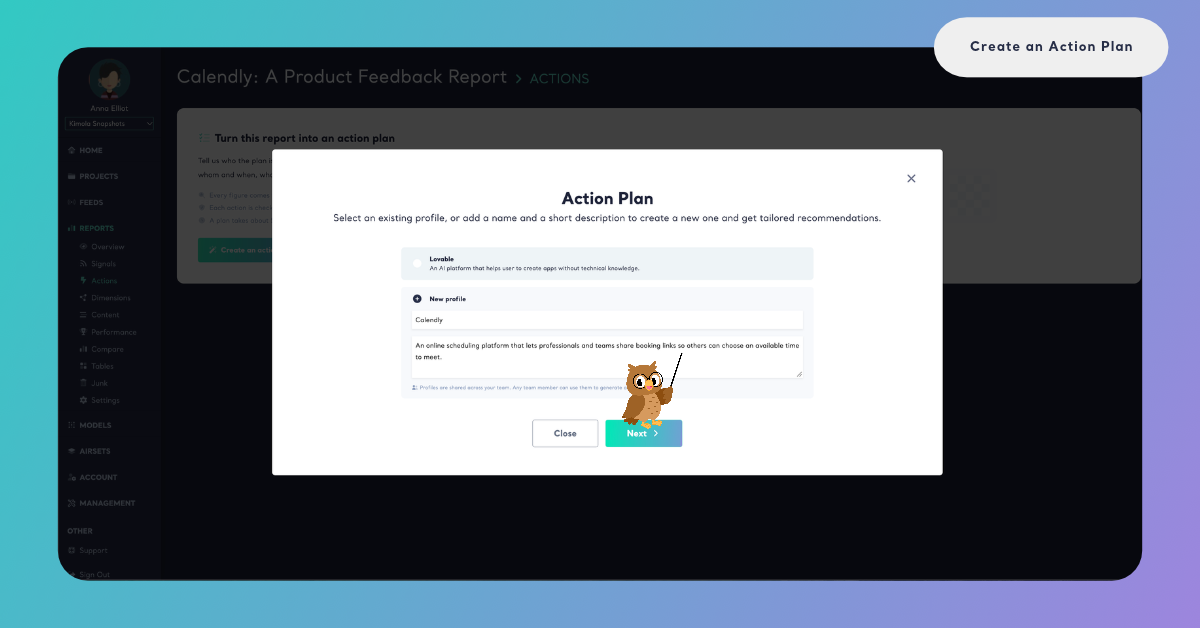
Give every Profile a description: a few words on what it does and to whom make its actions specific.
Step 2: Confirm Where You Stand
The second step is Where do you stand?. While Kimola reads the Report's columns, the step says "Finding where Acme Foods stands in this report. This may take a while.", with your Profile's name in place of Acme Foods. It then shows its suggestion: a sentence explaining what it found in the data, and the side it chose. Check the suggestion before you go on, because the plan is written from it. When Kimola isn't sure of its suggestion, it adds "This is a guess, please check it."
The side decides what kind of plan you get, so choose the one that matches your relation to the feedback:
- Our own offering: the Report is about you. The plan says what to fix, protect and build on.
- A rival: the Report is about a rival. The plan says how to win the demand it leaves open.
- Our market: the Report is about your category. The plan says where the opportunities are.
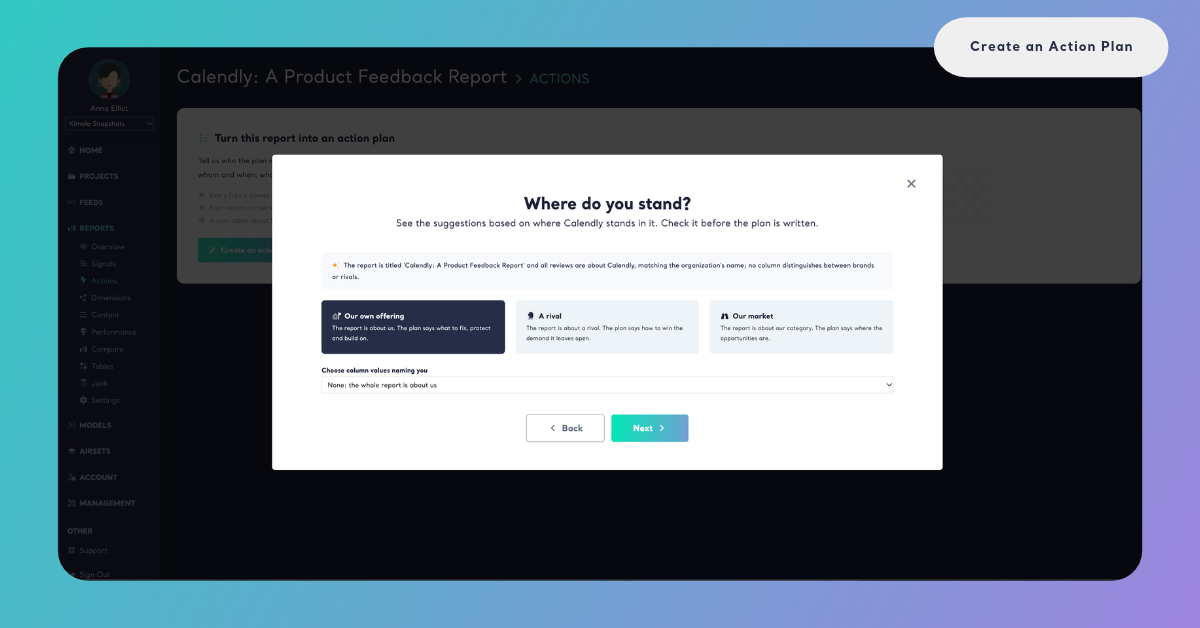
When a column of the Report names brands or products, the step also lets you choose the values that name you (or, for A rival, the rival). Under Choose column values naming you, pick the column. Its values are listed with the number of reviews each one has; search them with Search values and tick every value that names you. Pick every spelling of the same name. The other values are compared with you as your rivals; on the side A rival, the other values are the rest of the market. To read the whole Report as yours, leave the column at None: the whole report is about us. When you choose a column, Next is available once at least one value is ticked.
A Report of marketplace reviews for running shoes has a Brand column with several brands. For the side Our own offering, you choose the Brand column and tick Acme Running and Acme Run, the two spellings of your brand. The plan then reads the other brands' reviews as your rivals' and says where your shoes fall behind them or lead.
If the Report can't be read for a suggestion, Kimola says "The report could not be read for a suggestion, please pick your side." Choose the side yourself and click Next.
Where You Stand in a Space
A Space is your organization's own feedback, so in a Space Our own offering is preselected. Kimola still reads the Space's columns and may suggest a column of the Space that names you, for example a product or a brand column when the Space holds feedback about several of your products. You can take the suggested values, change them, or leave the column at None: the whole space is about us.
A plan of a Space reads every classified file of the Space, as its Signals do. A Space with no classified feedback yet can't start a plan: Kimola says "The space has no classified feedback yet." Upload a file and wait until it is classified. See Add Files to a Space.
A Space with no classified feedback yet can't start a plan.
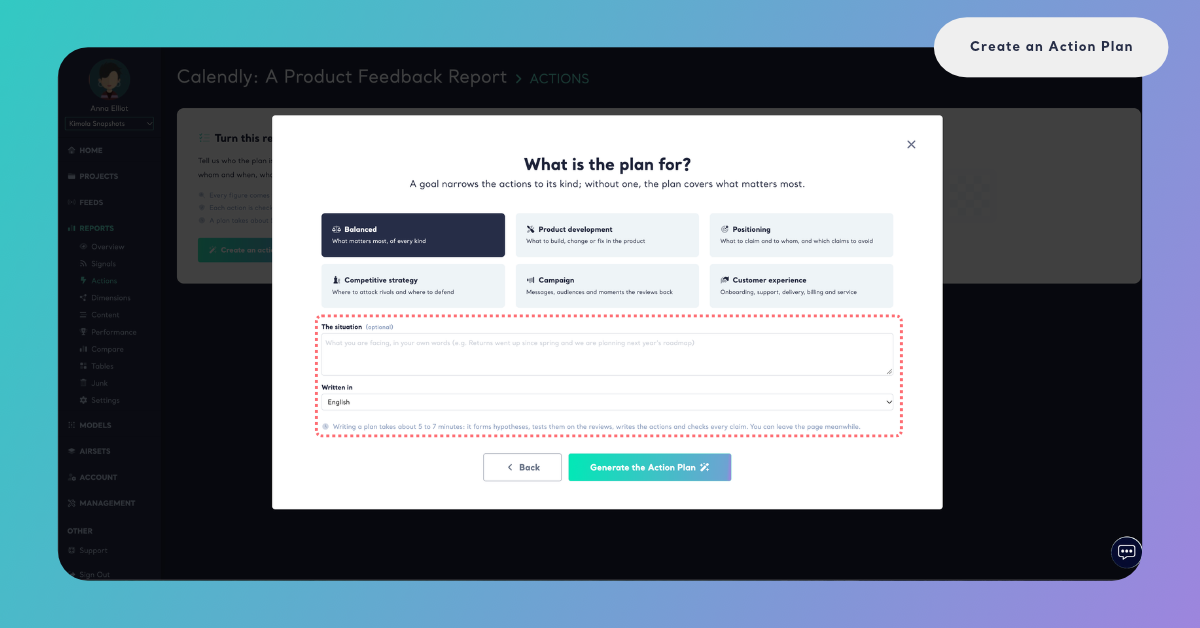
Step 3: Choose What the Plan Is For
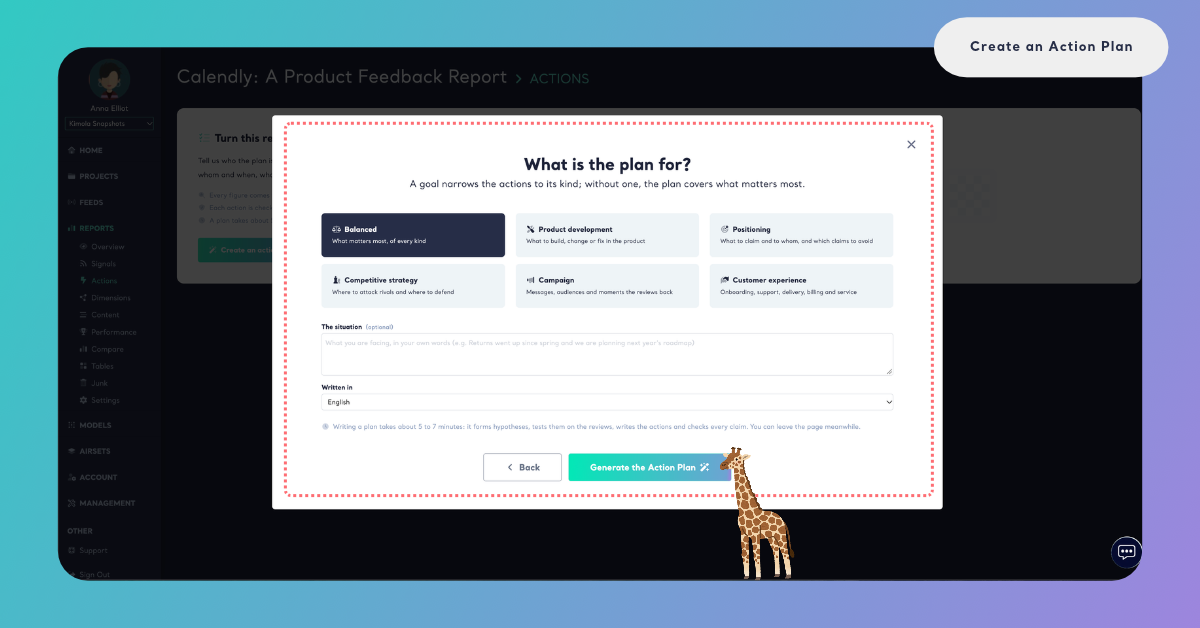
The third step asks What is the plan for?: "A goal narrows the actions to its kind; without one, the plan covers what matters most." Choose one goal:
- Balanced: what matters most, of every kind. This is selected when the step opens.
- Product development: what to build, change or fix in the product.
- Positioning: what to claim and to whom, and which claims to avoid.
- Competitive strategy: where to attack rivals and where to defend.
- Campaign: messages, audiences and moments the reviews back.
- Customer experience: onboarding, support, delivery, billing and service.
Keep Balanced for a first plan, when you want to see what the feedback supports most strongly. Choose a goal when the plan is for one team or one decision, such as next quarter's roadmap or a campaign brief.
Step 4: Describe the Situation (Optional)
Under the goals, on the same step, The situation lets you describe what you are facing, in your own words. It gives Kimola the context of your question, so the actions can speak to it. Leave it empty if you have nothing particular to add.
For a food delivery app: "Late deliveries went up after we opened in two new cities, and we are setting next quarter's courier budget."
Below it, Written in sets the language of the plan: English, Spanish, French, German, Portuguese, Dutch or Turkish. In a Space, it starts as the language of the Space's Funnel. The feedback itself can be in any of the languages Kimola analyzes; only the plan is written in the language you choose.
Step 5: Generate the Plan
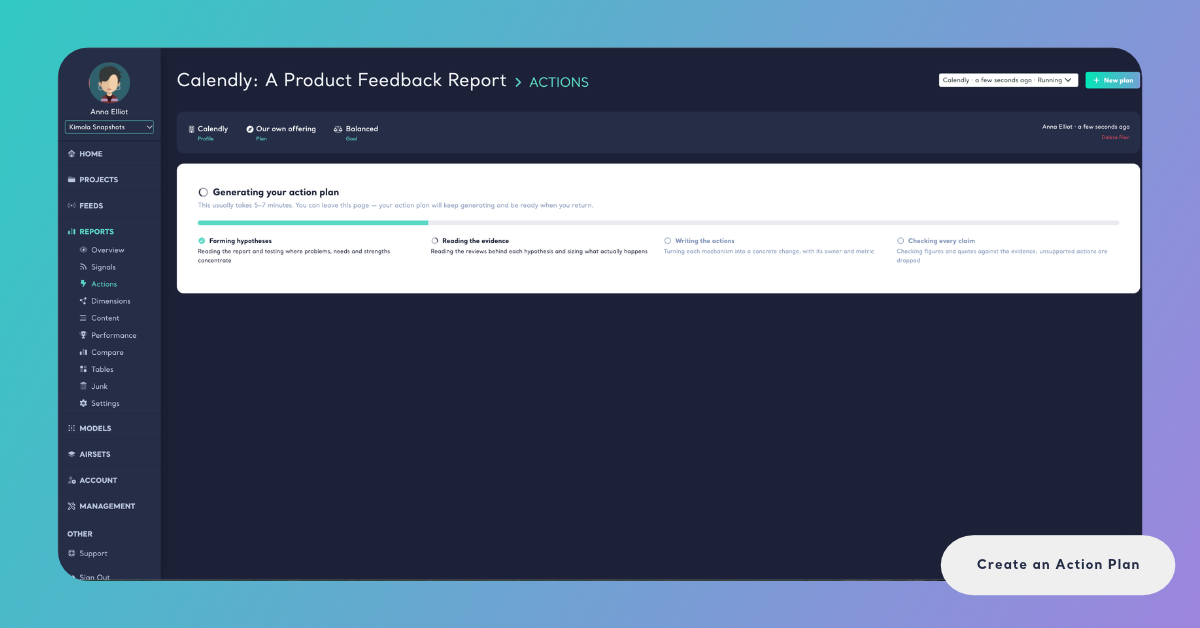
Click Generate the Action Plan. To change an earlier answer first, click Back. The wizard closes and the Actions page shows Generating your action plan with a progress bar and the four steps Kimola works through:
- Forming hypotheses: reading the Report or Space and testing where problems, needs and strengths concentrate.
- Reading the evidence: reading the reviews behind each hypothesis and sizing what actually happens.
- Writing the actions: turning each mechanism into a concrete change, with its owner and metric.
- Checking every claim: checking figures and quotes against the evidence; unsupported actions are dropped.
This usually takes 5 to 7 minutes. You can leave the page: the plan keeps generating and is ready when you return.
When the plan is ready, the page shows its Profile, goal and situation, and up to 12 action cards. Each card says what to change, for whom and when, who owns it, its confidence (High, Medium or Low) and How to See It Worked, with the evidence behind it. When the checks dropped actions, a line under the cards says how many were drafted and dropped because they were unsupported or repeated another one. See Actions in Reports for every part of the plan, and Rate Actions in an Action Plan to tell your team which actions are useful.
In a Space, every action card also offers Make a task, so an action becomes work for one teammate. See Actions in Spaces.
A plan stays as it was written. In a Space, files classified after the plan are not in it: the plan says "3 files were classified after this plan was written: its actions do not read them." with the number of those files, and offers Write a new plan. Nothing rewrites a plan by itself.
A plan stays as it was written: nothing rewrites it by itself.
When No Action Passes the Checks
Sometimes the evidence doesn't back any action firmly enough. The plan is then not generated, and the page says "No action passed the checks this time: the evidence did not back any of them firmly enough. A narrower goal or a situation may help." Click New plan and try again with a goal other than Balanced, or describe the situation so Kimola knows where to look.
If something else stops the plan, the page says This plan could not be generated. Click Start a new plan to open the wizard again.