What is a Space?
min read - Updated on Nov 06, 2026A Space is where the feedback of one channel piles up in Kimola, such as call center conversations, social media posts or the answers to a survey. Every new file joins the files before it, and every record is classified with the Space's Funnel as soon as it arrives. The picture gets wider with every upload and stays comparable over time and across Spaces.
A Space is a continuously growing collection of feedback from one channel, analyzed file by file with the same AI models. You name it after the channel its feedback comes from, for example Call Center, Social Media or NPS Survey, and you add a file whenever new feedback comes in: last week's call transcripts, this month's survey export, the latest social posts.
Spaces are available with the Enterprise package and in Kimola On-Premises. To create a Space, sign in to your Kimola account and make sure you have a Funnel. A Funnel defines which AI models Kimola uses to classify feedback in the Space. If you don’t have one yet, see Create a Funnel.
The models come from the Space's Funnel, which you choose when you create the Space and can't change later. A Funnel holds one model of each kind (a content classifier that finds the themes, a sentiment classifier and Dimensions) and the language Kimola writes its analyses in. Because every file of a Space is read with the same Funnel, a theme in the first file means the same thing as that theme in the latest one. Spaces that share a Funnel speak the same language, so you can read them side by side as well.
Why Spaces Matter
Customer feedback keeps coming. A call center records conversations every day, a survey keeps collecting answers, and customers keep writing about you. When every new export is analyzed on its own, each analysis is a separate snapshot with its own themes, and following a channel over months means lining up one snapshot against another by hand.
A Space keeps one channel in one place with one set of models. Themes, sentiment and Dimension answers stay consistent from the first file to the latest, so the questions a team asks of a channel over time get a direct answer: what customers say now, what changed with the latest files, which themes are rising or fading, and how satisfaction moves.
Spaces are also the base of the other features of the Enterprise package. Insights are the texts Kimola writes about a Space after every new file. Action Plans can be written from a whole Space. A Customer is recognized by the Customer Column of a Space and gets one page with their feedback from every Space. A Department is the part of the feedback one of your teams owns, read across all its Spaces. A Task turns a finding of a Space into work for a teammate.
How a Space Works
You create a Space in two steps: choose the Funnel its feedback will be classified with, then give the Space a name and, optionally, a description of where its feedback comes from. A Funnel has to exist first. If your account has none yet, the wizard points you to Funnels. See Create a Space.
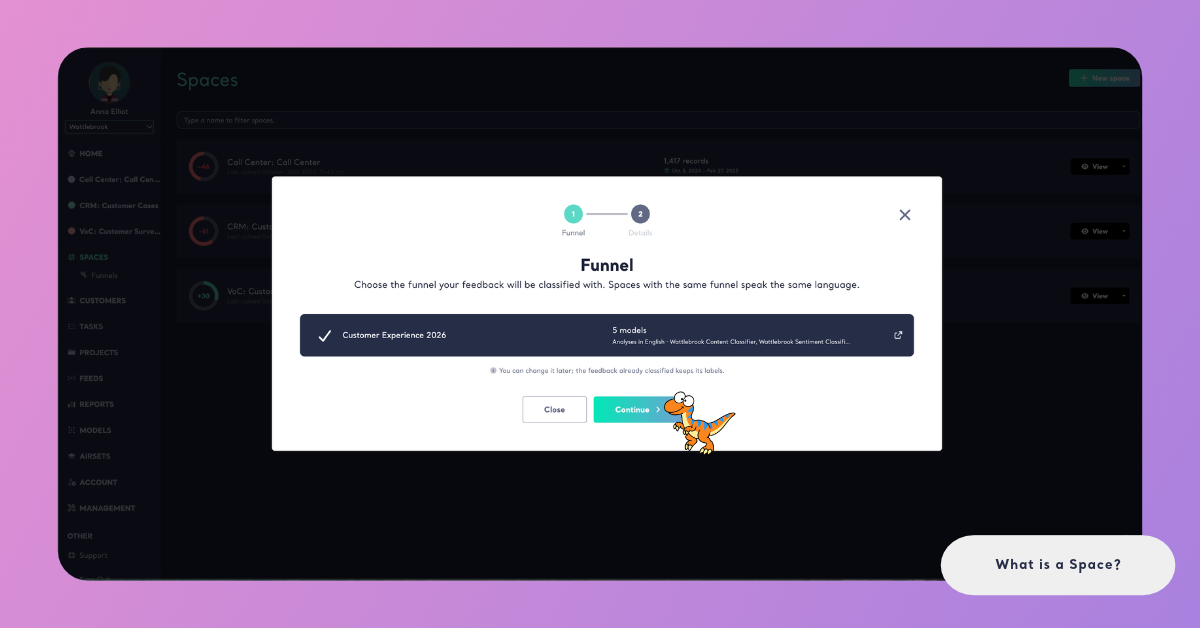
The First File Sets the Schema
A new Space is empty until you upload its first file. That file sets the Space's schema, the structure every later file follows:
The Date Column dates every record. A Space grows over time, and the date of each record is what shows its trends and what changed since the last upload.
The Text Fields are the columns that hold the texts to classify. A Space can have one or more, and you name each one, for example Review or Conversation. Every text field is classified with every model of the Funnel.
The other columns of the file are kept but not classified. You can use them to filter and segment your feedback, for example by product, region or store.
The Customer Column is optional. It tells whose feedback a row is: a customer code, an ID, a number or an email. Every customer then gets a page with all of their feedback across your Spaces. You can choose it with the first file or add it later on the Space's Files page.
A later file doesn't need the same column names. When you upload it, Kimola shows the Space's columns next to the file's columns, and you match each column of the file to a column of the Space. See Add Files to a Space.
If a file with the same name was uploaded to the Space before, Kimola warns you, because the same file uploaded twice would count its feedback twice. You can upload it anyway if it is a different file, or choose another one.
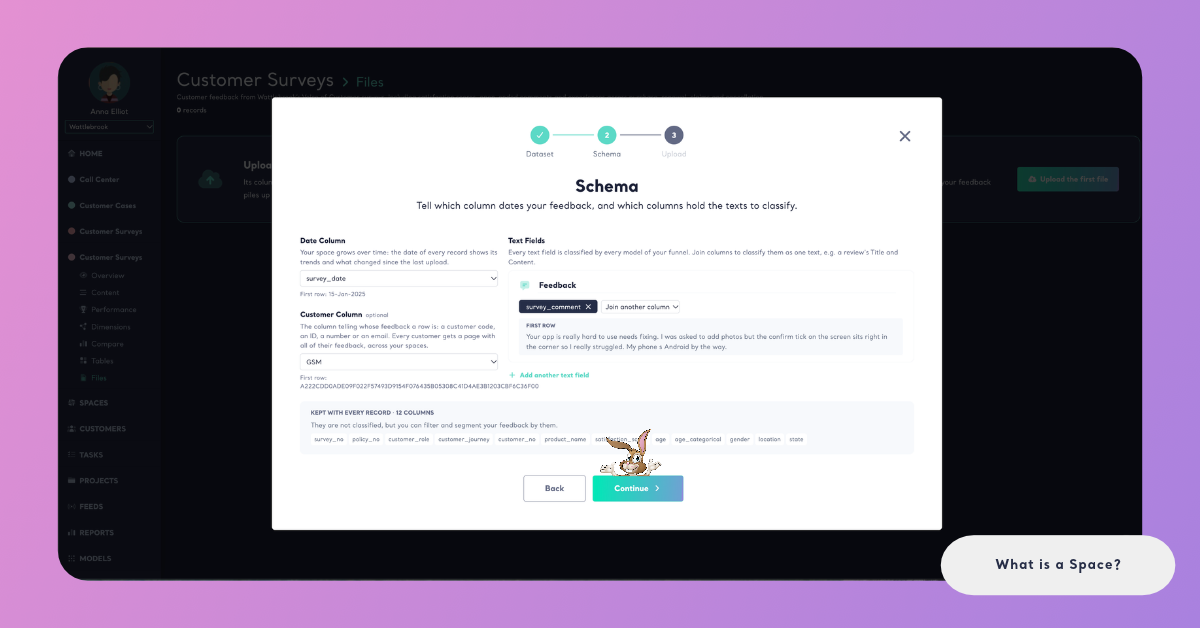
Every File Is Classified as It Arrives
When you upload a file, Kimola starts classifying its records with the Space's Funnel. While it works, the Space shows New data is being analyzed. A file counts in the Space only once it is classified: until then its records don't appear in the Space's numbers.
Classifying uses queries, counted as rows × models × Dimensions. The Summary step shows how many queries a file will use before you upload it. See How to Calculate Queries.
If a wrong file gets into a Space, take it back with all of its records from the Files page with Take this file back. The Space's counts, dates and NPS are recalculated, and its Signals and Insights run again. When the last file of a Space is taken back, its schema is cleared. See Take Back a File from a Space.
What Happens After Every File
Once a file is classified, Kimola updates the whole Space with it:
The Space's NPS is calculated again: the share of positive feedback minus the share of negative feedback, from −100 to 100, using the Funnel's sentiment classifier. It is calculated from the text of the feedback, so it is a different measure from the 0–10 survey question. See How NPS Is Calculated in Spaces.
The Space's Signals run again over all of its classified feedback. Signals are statistically tested findings: where feedback differs between groups (Differences) and how it changed over time (Trends). In a Space, a file can be one of the groups compared.
The Space's Insights are written again where the evidence moved. Kimola decides with fixed rules which texts to write, which records they read and how each theme or answer moved; an AI model only writes the words. A text whose evidence didn't move keeps its previous wording. See How Insights Are Updated.
Action Plans stay as they were written. A plan reads every file that was classified when it was written, and when newer files arrive it says how many files came after it, with Write a new plan. Nothing rewrites a plan by itself.
What You See in a Space
When your account has Spaces, they are listed in the main menu right under HOME. When you open a Space, its pages appear under its name. Open SPACES in the main menu to see the list of all your Spaces. It shows each one with its NPS ring, and a Space without a file yet says No upload yet. You create a new Space there with New space. If your account has no Space yet, the page says "Let your feedback grow in one place" and offers Create a Space.
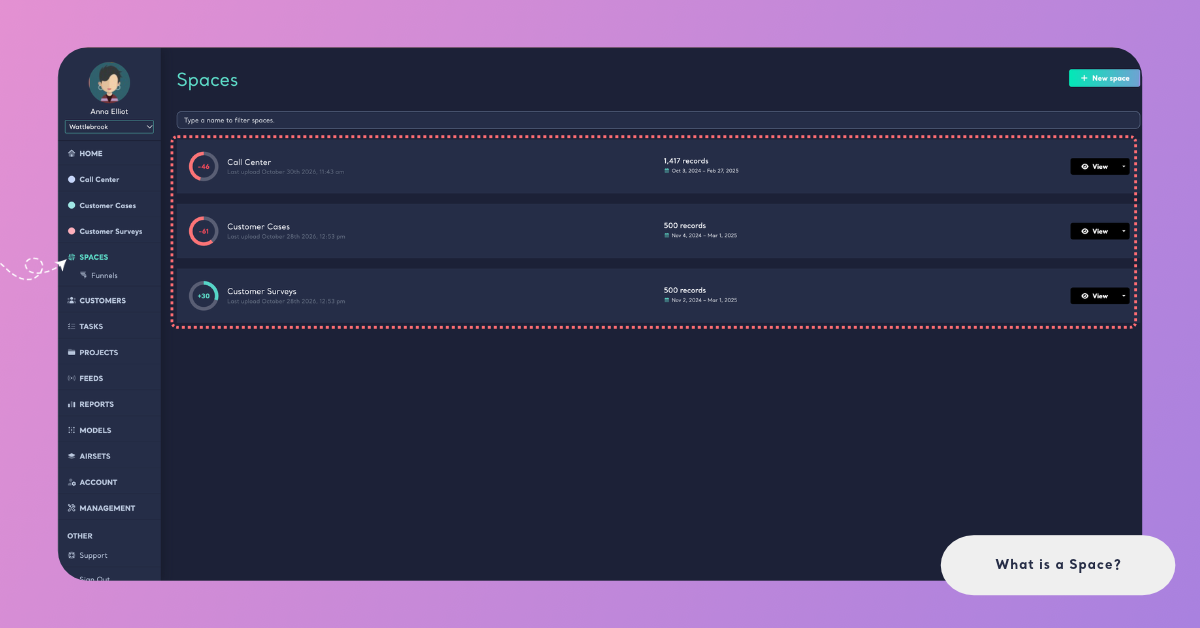
A Space has these pages:
- Overview shows What your feedback says now (the Space's Insight) and the themes and answers that moved, then the total data, the NPS ring, the best and worst performing themes, all themes by category, Dimensions and Signals. See Overview in Spaces.
- Signals lists the Space's Differences and Trends. It appears once the first Signals exist. See Signals in Spaces.
- Actions holds the Action Plans written from the Space. It appears once the Space has classified feedback. See Actions in Spaces.
- Content shows the records themselves, read through one text field or all of them, with filters. See Content in Spaces.
- Performance shows the Satisfaction and Dissatisfaction Score of each theme, by the classifier you choose. See Performance in Spaces.
- Dimensions shows how the feedback answers each research question, with the Insights of each Dimension and answer. See Dimensions in Spaces.
- Compare puts the values of the Space's columns, its files or its text fields side by side. See Compare in Spaces.
- Tables builds tables from the metrics you drop. Make a task turns the records a table reads into a Task. See Tables in Spaces.
- Files holds the Space's schema and files: upload a new file with Add data, or take one back. See Add Files to a Space.
Once your account has Spaces, Home shows all of them together: summary cards, every Space's share of the feedback and its NPS, your Departments when your account has them, the classifiers' categories, volume over time and the latest files.
Spaces and Reports
A Report and a Space both classify customer feedback into themes, sentiment and Dimensions, and both have Signals and Action Plans. They are built for different jobs.
A Report is one dataset analyzed once: a file, a set of links, an integration, an Airset or a Feed. You choose the classifiers and Dimensions for each Report, and Reports are available in every package. A Report fits a one-off question, such as a study of a product category or a single survey wave.
A Space is one channel that keeps growing. Every file is classified with the same Funnel, the Signals run again after every file, and Insights say what the feedback says now and what the latest files changed. NPS, Customers, Departments and Tasks are features of Spaces; Reports have Dimension analyses in place of Insights and don't make Tasks. A Space fits a channel your team keeps feeding and follows over time.
You can use both in the same account. For a full comparison, see Reports vs. Spaces.