What is an Insight?
min read - Updated on Nov 09, 2026An Insight is a short text Kimola writes about a Space after every new file: what its feedback says now, and what the latest files changed. Kimola writes an Insight for the whole Space, for its themes and their categories, for every Dimension and for the answers of each Dimension, and shows them on the Space's Overview and Dimensions pages.
Insights are available in the Enterprise package and in Kimola On-Premises. To see Insights, sign in to Kimola and use a Space with at least one file that Kimola has finished classifying.
If you don’t have a Space yet, see Create a Space. If you haven’t uploaded a file to your Space yet, see Add Files to a Space.
A Space keeps growing, file by file, and a team that follows it keeps asking the same two questions: what do customers say now, and what changed since we last looked? Reading thousands of records after every upload doesn't answer them. Insights answer them in a few sentences, in the language of the Space's Funnel, with the numbers, quotes and records they rest on shown next to each text.
Insights follow the same rule as Kimola's other analyses. Kimola decides with fixed rules which texts to write, which records each text reads and how each theme or answer moved. An AI model only writes the words, from what was already decided and counted. Every Insight of a Space reads the same records: the latest records of the Space, at least 1,000 records over at least 30 days, or the whole history of a smaller Space. After every file, a text is written again only where its evidence moved; everywhere else the previous text is kept. See How Insights Are Updated.
Where You Find Insights
Insights appear on two pages of a Space. Each one has a caption that tells what it is about:
What your feedback says now is the Insight of the whole Space, at the top of Overview. Next to it, Kimola lists the answers and themes that moved most with the latest files and the ones fading lately.
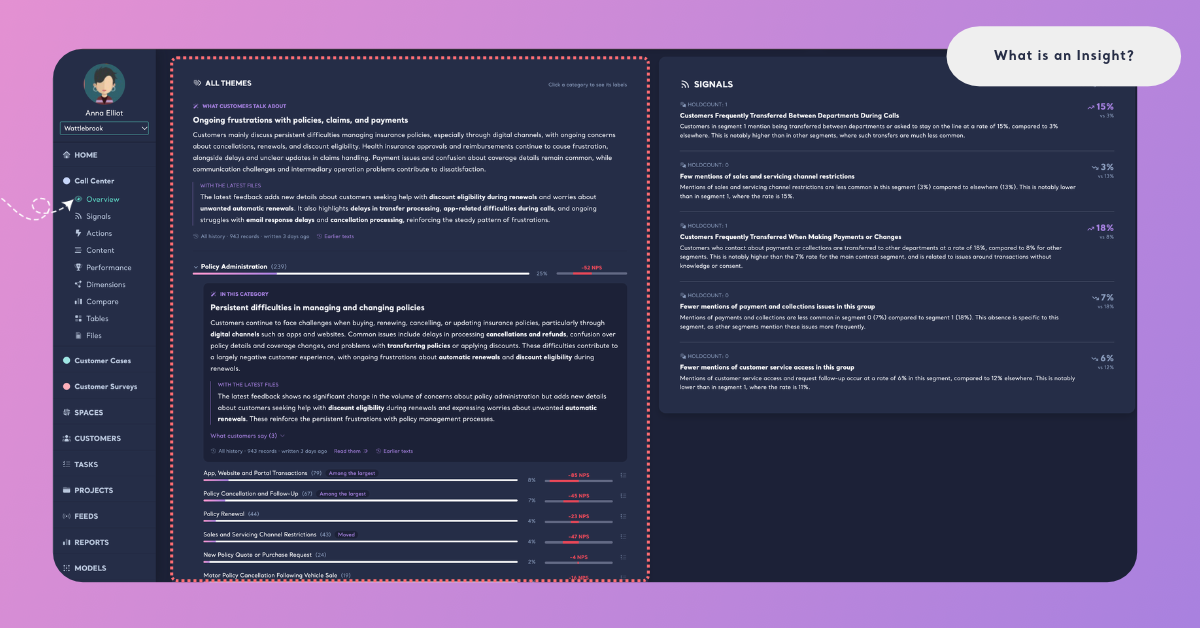
What customers talk about is the Insight of the content classifier, on top of All Themes on Overview: what the Space's themes say together.
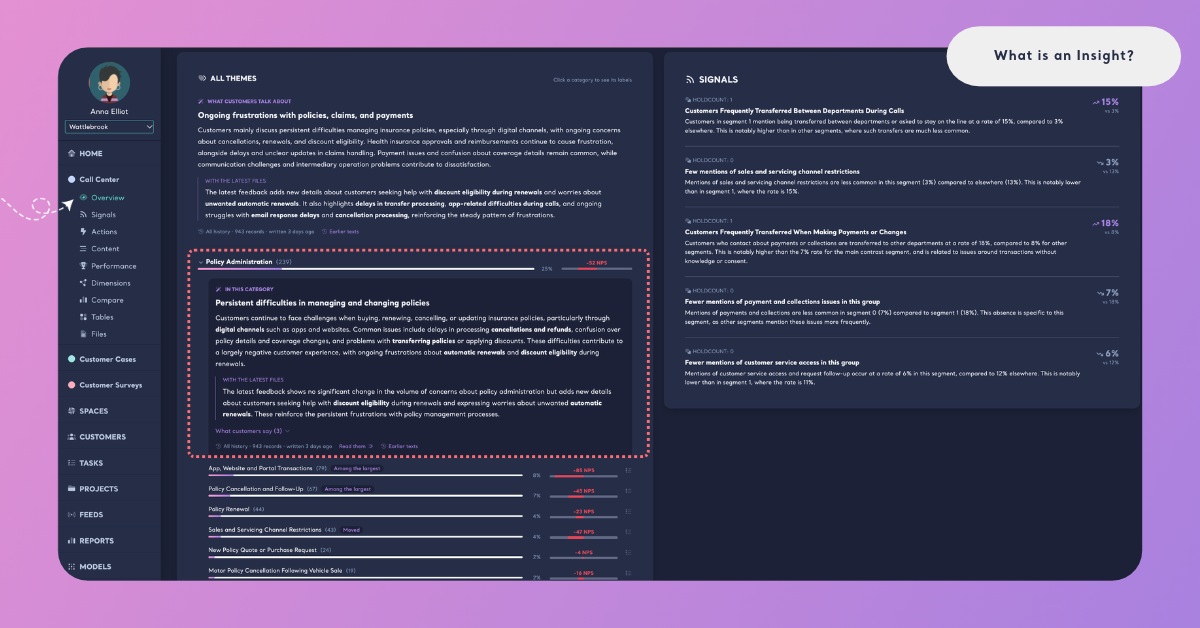
In this category is the Insight of a category of themes. It appears when you open the category in All Themes.
About this theme is the Insight of one theme (a label of the content classifier). It appears when you open the theme in its category, with Follow and Make a task next to it.
What the answers say is the Insight of a Dimension, written over its answers, on the Dimensions page.
Why they answer so is the Insight of one answer of a Dimension, for example one pain point. It appears in the answer's detail on the Dimensions page.
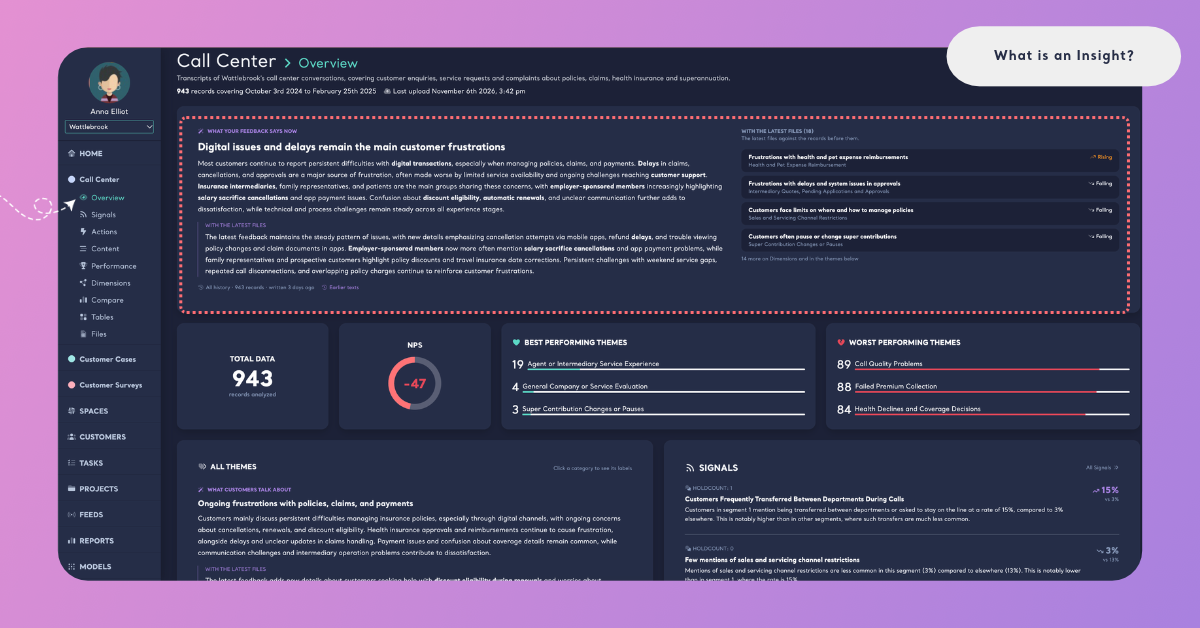
A Space that has classified files but no Insights yet says "The insights of this space are being written for the first time. They will be here when they are ready, without reloading the page."
Which Themes and Answers Get an Insight
A content classifier can have many themes, so Kimola doesn't write a text for every one of them. A category gets its own Insight, written from its own records. Among the themes, Insights are written for the largest themes, the ones that moved, the most dissatisfied, the ones with an open Task and the ones your team follows.
A theme row in All Themes shows why its Insight was written, with one or more chips: Among the largest, Moved, Most dissatisfied, Open task, Followed and Summarized on demand. A star on the row means a member of your team follows the theme. A theme without an Insight offers Summarize this, which writes its text in a few seconds, and Follow, which makes every update write it. See Follow and Summarize Themes.
An answer of a Dimension gets an Insight when at least 10 of the latest records give it. Until then, its detail says "No insight yet: an answer gets one when 10 of the latest records give it", followed by the window it was counted in.
How to Read an Insight
Every Insight has the same core: a caption, a title, the text, the window line and Earlier texts. The Insights of a category, a theme and an answer also show the customers' words behind them, and a theme or an answer that moved with the latest files also says how it moved.
The caption and the title. The caption says what the Insight is about (for example About this theme), and a bold title sums up the text. When the subject of the Insight moved, its trend appears next to the caption, for example New or Fading. A theme's Insight also repeats the chips that say why it was written.
The text. A few sentences on what the feedback says. Its key terms are shown in bold: the words and phrases that carry the finding, taken from the text itself. The text carries no numbers. Every figure is shown from the data next to the text, so a share in a sentence can never drift away from the share on the page.
With the latest files. On a theme or an answer that moved with the latest files, a second paragraph says how it moved, with the share before and in the latest files: for a theme "12% of the feedback before · 18% in the latest files", for an answer "12% of the answers before · 18% in the latest files". When too few records came before the latest files, the Insight says "Too few records came before the latest files to tell how this theme moved with them." Kimola claims no change without enough records on both sides.
The answer's share. An answer on Dimensions also shows its share of the answers in the window and its NPS, for example "18% of the answers in the window (412 of 2,290) · NPS −14".
What customers say. Two or three quotes in customers' own words, each with its date. On a category or a theme, they are folded under What customers say (3), with the number of quotes; click it to read them. On an answer, they are shown right under its text. A quote from the latest files is marked latest files.
The window line. Under every text, a line says which records it read and when it was written: "Last 47 days · 3,240 records · written 2 hours ago". Hover over it to see the dates. When a Space is small enough to be read whole, the line starts with "All history". When the latest update couldn't write a text again, the line adds "· not rewritten with the latest files", and the previous text stays in place.
Read them. On a category, a theme or a Dimension, it opens the records behind the Insight on the Content page, already filtered to its subject and to the dates of its window. The records of an answer open with Read the records, above its Insight.
Earlier texts. Opens the texts the Insight had before, each with its date, its window and why it was written again, for example "Written again: it moved significantly with the latest files". The first text of an Insight says "No earlier text: this is the first one written."
The Numbers Belong to the Window
Every number next to an Insight comes from its window, the latest records of the Space.
The numbers next to an Insight never come from the filters you set on the page. When you filter the Dimensions page by labels, columns or a period, the page's own numbers change and the Insights stay as they are, with the note "The insights read the space's latest records, not the filters above."
The window has two limits for a reason. The 1,000 records keep a small theme visible: 2% of 1,000 records is still about 20 pieces of feedback. The 30 days keep a busy Space from describing only its last few days. A Space has one window, so all of its Insights read the same records and can be compared with each other.
What Moved With the Latest Files
Besides what the feedback says now, an Insight tells whether its theme or answer moved. Kimola compares the records of the latest files with the records that came before them, and calls a change only when it is statistically significant.
Trends
A trend appears next to the caption of an Insight whose subject moved, and on the items of the summary on Overview. Hover over it to read what it means:
- New means it was not among the Insights of the updates before.
- Back again means it was among the Insights before, then dropped out, and it is back now.
- Rising means its share is significantly higher in the latest files than in the records before them.
- Falling means its share is significantly lower in the latest files than in the records before them.
- Fading means its share now is significantly lower than it was before.
Falling looks at the latest files only; Fading compares the whole window with the records before it, so it also catches a theme that declines slowly over several files.
What Moved on Overview
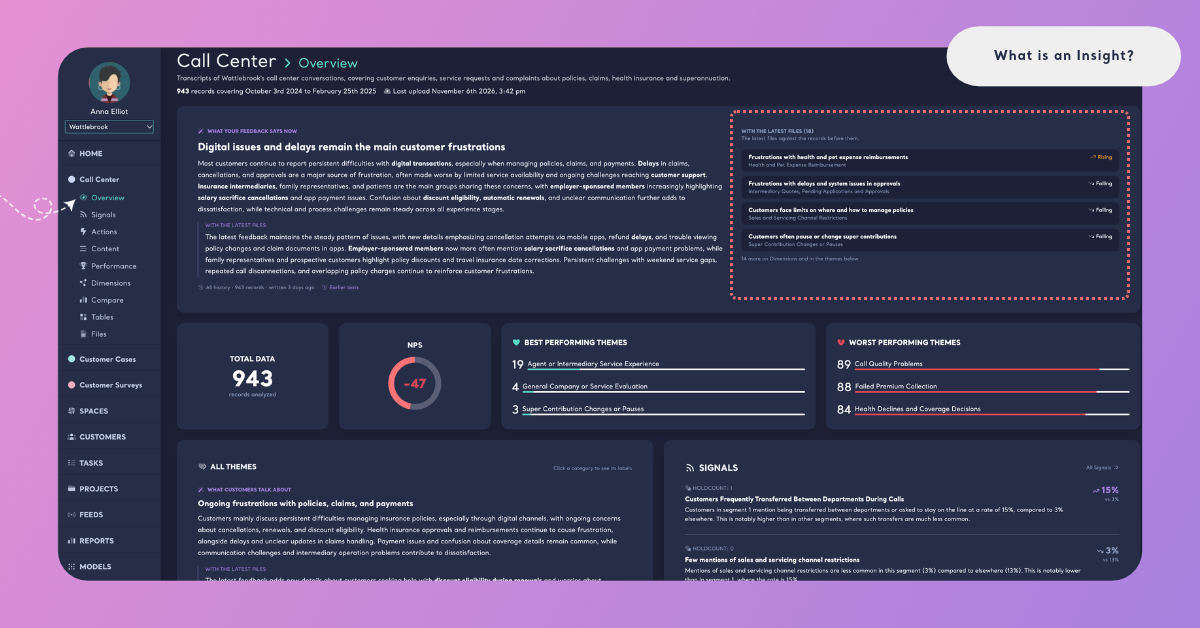
Next to What your feedback says now, Overview lists what moved in two groups, because each group is compared with something different. Each item shows the title of its Insight, the theme, category or answer it is about, and its trend, and the heading of each group counts its items, for example With the latest files (12).
With the latest files holds the answers and themes that moved with the latest files: "The latest files against the records before them."
Fading lately holds the ones that have been fading: "Significantly less often in the last 47 days than before them", with the length of the window in place of 47.
Each group shows at most four, and a line such as "3 more on Dimensions and in the themes below" points to the rest. Click an answer to open it on Dimensions, or a theme to open it in All Themes, where the page scrolls to it. See Overview in Spaces.
What Moved on Dimensions
On the Dimensions page, an answer that changed significantly with the last upload shows ▲ or ▼ with the points it moved, "since the last upload". The badge uses the same test as the Insights, so a badge and an answer's text never disagree. An answer's detail shows both shares, for example "Last upload 18% · uploads before 12%", and says "no significant change" when the difference doesn't pass the test. When too few records of the last upload give an answer, the page says so: "too few to tell a change". See Dimensions in Spaces.
When New Files Arrive
After every classified file, Kimola updates the Insights of the Space. While the update runs, the current texts stay on the page with a strip showing its progress, for example "Updating the insights with the latest files · 40%". When it completes, the page says "Updated just now · 5 insights rewritten" and marks the texts that changed with Rewritten, without a reload. For when and why a text is written again, see How Insights Are Updated.
Insights, Signals and Analyses
Insights, Signals and Dimension analyses all read classified feedback, and each answers a different question.
A Signal is a statistically tested finding: where feedback differs between groups (Differences) or how it changed over time (Trends). Each Signal card shows its measure, its consistency, the group it is compared with and quotes, and your team can give it a verdict. Signals exist in Reports and in Spaces, and a Space's Signals run again after every file. See What is a Signal?
An Insight is a written reading of a Space's latest feedback: what it says now and what the latest files changed, for the whole Space, its themes and categories, its Dimensions and their answers. Insights exist only in Spaces, because only a Space keeps receiving new files.
A Dimension analysis is the AI-written text of a Dimension in a Report. A Report is one dataset analyzed once, so its analyses are written once for that data, and Reports have them in place of Insights. See Dimensions in Reports.
Use Signals to find where a segment or a period stands apart, and Insights to read where a channel stands today and what its latest files changed. When a finding needs action, turn it into a Task from the theme, the Signal or the records behind it.