Take Back a File from a Space
min read - Updated on Nov 06, 2026You can take back a file from a Space when it should not be there: a wrong export, the same file uploaded twice, or a file with the wrong columns. Taking a file back removes the file and all of its records from the Space and from every analysis that reads them. Kimola then recalculates the Space's record count, dates and NPS, and runs its Signals and Insights again in the background, so the Space reads as if the file had never been uploaded. You do it from the Space's Files page with Take this file back.
Spaces are available in the Enterprise package and in Kimola On-Premises. Before you begin, sign in to Kimola and make sure the file you want to take back has already been uploaded to the Space.
When to Take Back a File
A Space is meant to grow file by file and stay comparable over time, so every file in it counts in its volumes, trends, NPS and themes. A file that doesn't belong there shifts all of them. Take a file back in cases like these.
- The same file was uploaded twice. Its feedback is counted twice, which inflates the Space's volumes and the share of the themes it mentions. When you upload a file with the same name as an earlier one, Kimola warns you before the upload; if a duplicate got in anyway, take one of the two copies back.
- The file belongs to another channel. An export of the social media team uploaded to the Call Center Space mixes two channels, and the Space's trends no longer describe either of them. Take it back and upload it to the right Space.
- The columns were matched wrong. If a later file's columns were matched to the wrong parts of the schema, for example the agent's notes to the customer's text field or an export date to the Date Column, its records were classified and dated from the wrong columns. Take the file back and upload it again with the right matches. See Add Files to a Space.
- The export was incomplete or broken. A file cut off halfway, or one with the wrong date range, gives a false picture of the period it covers. Take it back and upload the full export.
You can also take back a file that is still being classified, for example right after you notice you chose the wrong file. Its classification stops, and its records never reach the Space.
Take Back a File
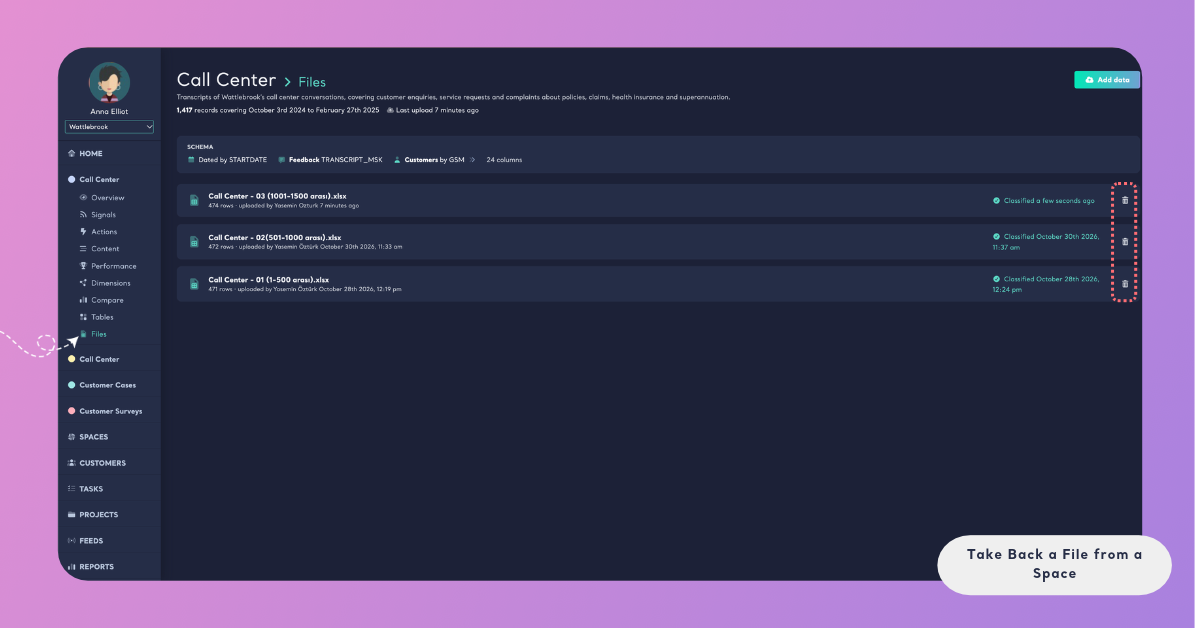
Every file of a Space is listed on its Files page, newest first, with its name, its number of rows, who uploaded it and when, and its state: Waiting to be classified, Classifying with its progress, or Classified with the date. Taking a file back takes three steps.
Step 1: Open the Files Page
Open the Space from the main menu and click Files under it. The page shows the Space's Schema card on top and the list of its files below.
Step 2: Find the File and Click Take This File Back
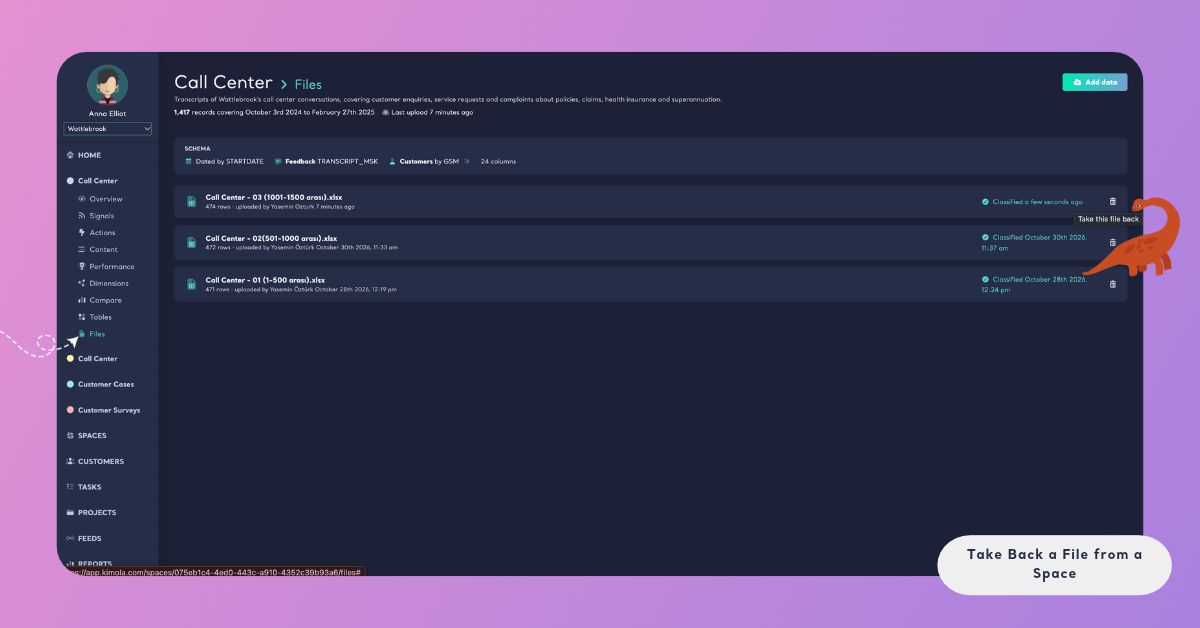
Find the file by its name and upload date. At the end of the file's row, click the bin icon. Its tooltip says Take this file back.
If several files have the same name, the number of rows and the upload time tell them apart.
Step 3: Confirm
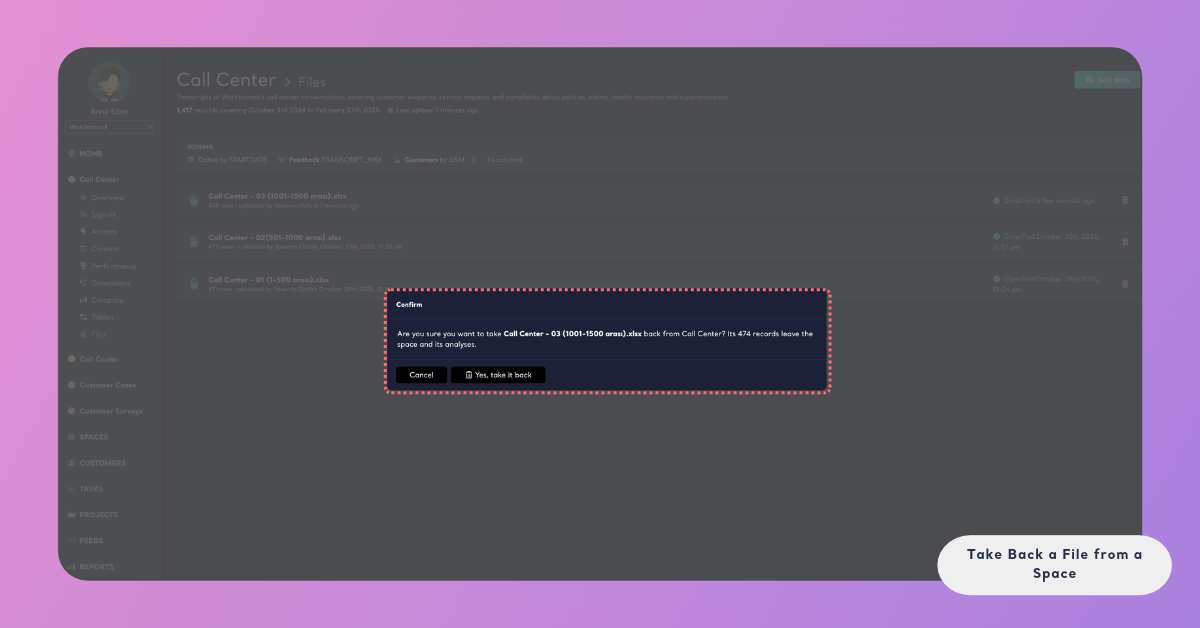
Kimola asks you to confirm, naming the file, the Space and the number of records that will leave it. For a file called October Calls.xlsx in a Space called Call Center, it reads: "Are you sure you want to take October Calls.xlsx back from Call Center? Its 2,400 records leave the space and its analyses." Check the file name and the number of records, then click Yes, take it back. To keep the file, close the dialog without confirming.
When the file is taken back, Kimola says the file "is taken back." and the file leaves the list. If it can't be done, the page says "The file could not be taken back, please try again."
What Happens Afterwards
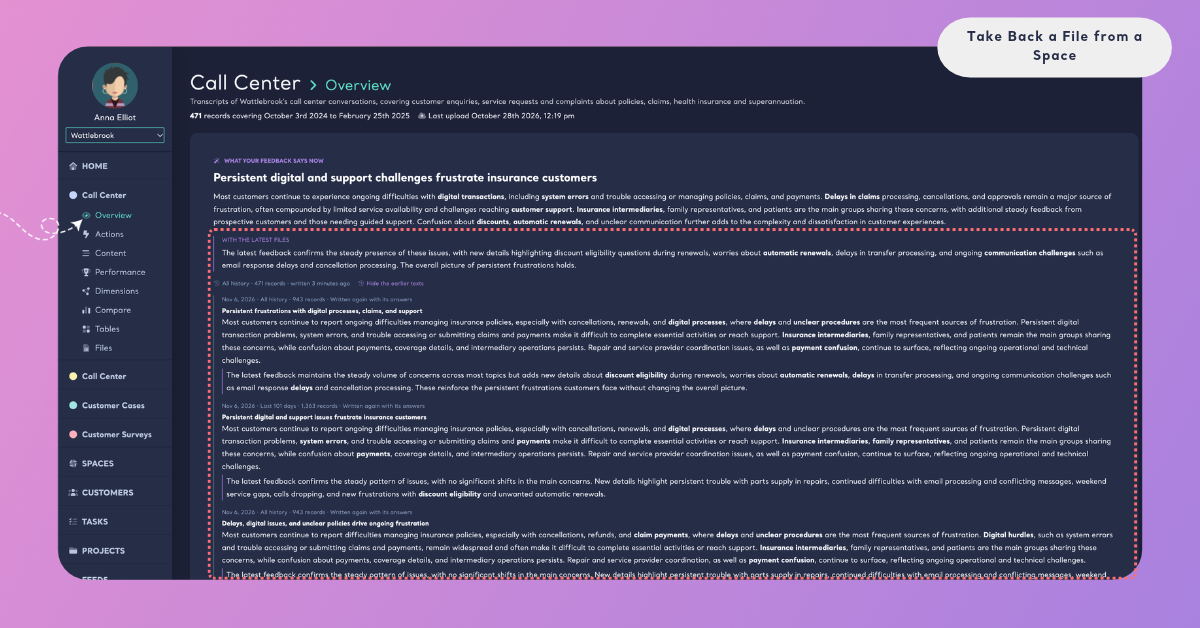
Once a file is taken back, its records are deleted from the Space and the Space is brought up to date without them. Some parts change at once, others are recalculated in the background, and a few stay as they were by design.
The Space Is Recalculated
The Space's record count, its first and last dates, its number of files and its NPS are recalculated at once. Every page of the Space (Overview, Content, Performance, Dimensions, Compare and Tables) reads only the records that remain. The file is no longer offered as a filter on Content or as a group on Compare, and Home no longer counts its records among the account's Spaces.
Signals and Insights Run Again
The Space's Signals run again in the background on the remaining files, the same way they run after an upload, so a difference or trend that came from the taken-back file disappears with it. After the Signals, Kimola updates the Space's Insights. They follow the same rules as after a new file: a text is written again only where its evidence moved, and the earlier text stays under Earlier texts. See How Insights Are Updated.
Customers and Departments
If the Space has a Customer Column, every customer of the file is counted again: their records, their Spaces, their dates and their NPS. A customer whose only feedback was in the taken-back file is no longer listed on Customers. When no customer has feedback left, the page says "No customer has feedback left: their files were taken back." See What is a Customer?
Departments read the feedback of their Spaces as it is, so the records of a taken-back file leave every Department that read them.
Action Plans and Tasks Stay as They Were
Action Plans are not rewritten when a file is taken back, just as they are not rewritten when a file is uploaded. A plan stays as it was written. If the taken-back file was part of what a plan read, click Write a new plan to get a plan written from the Space as it is now.
Tasks keep the evidence they were made with: its share of the feedback, sentiment and quotes are frozen when the task is made. A task made from a theme, a Signal or a view that included the taken-back file keeps that evidence. Review it if its finding came mostly from that file.
When the Last File Is Taken Back
Taking back the last file of a Space empties it. Its schema is cleared, together with its Signals and Insights, and the Space is ready for a new first file. The next file you upload sets the schema again: you choose the Date Column, the text fields and an optional Customer Column from scratch. See Add Files to a Space.
Taking back every file is the way to start a Space over with a different schema while keeping its name and its Funnel.
Upload the Right File
To replace a taken-back file, upload the correct one from Add data on the same page. The new file is classified like any new file.
The queries the taken-back file used are not refunded. The new file uses queries like any new file, including when it is the same file uploaded again with different matches. See How to Calculate Queries.