Follow and Summarize Themes
min read - Updated on Nov 09, 2026In a Space, Kimola writes an Insight about a theme, About this theme, only for the themes it chooses after every new file: the largest, the ones that moved, the most dissatisfied, the ones with an open task and the ones your team follows. You can decide part of that choice yourself. Follow a theme and every update of the Insights writes it from then on. Summarize this writes a theme that has no Insight in a few seconds, from the records of the latest update. Make a task turns the theme into work for a teammate, and the theme is written with every update while that task is open.
Following and summarizing themes are available in the Enterprise package and in Kimola On-Premises. Sign in to Kimola and open a Space with at least one classified file. To summarize a theme on demand, wait until the Space’s first Insights are ready.
If you don’t have a Space yet, see Create a Space. If you haven’t uploaded your first file, see Add Files to a Space.
A content classifier can have many themes, and Kimola doesn't write all of them after every file. It writes the ones most likely to matter, so the texts stay focused and comparable from one update to the next. The theme your team is working on, a new feature, a campaign or a known problem, is not always among them. Following, summarizing and tasks make sure it is.
Why a Theme Has an Insight
Kimola chooses the themes it writes with fixed rules, and tells you why it chose each one. On a Space's Overview, open a category in All Themes to see its labels. A label row can carry one or more chips, and each chip is a reason. Hover over a chip to read what it means.
- Among the largest: One of the themes customers talk about most.
- Moved: It moved with the latest files, or it is fading. See How Insights Are Updated for how a change is tested.
- Most dissatisfied: One of the themes customers are most dissatisfied with.
- Open task: It has an open Task.
- Followed: A member of your team follows it: every update writes it.
- Summarized on demand: Written when it was asked for, on the records of the latest update.
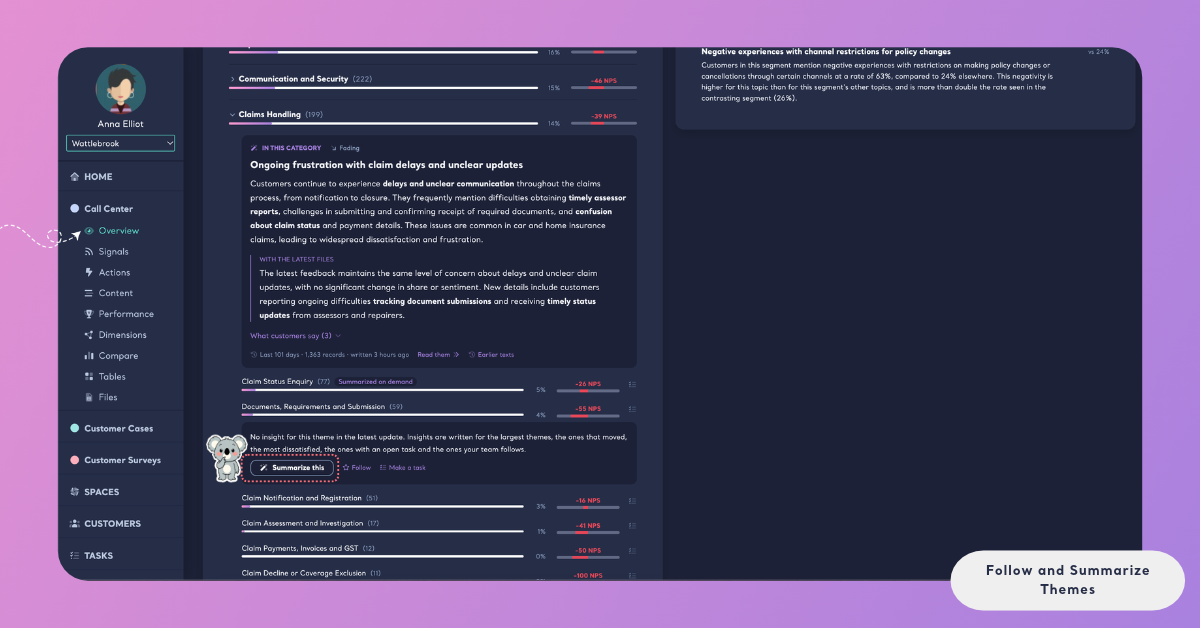
A star on the row means the theme is followed by your team. A theme with no chip has no Insight in the latest update. When you open it, it says "No insight for this theme in the latest update. Insights are written for the largest themes, the ones that moved, the most dissatisfied, the ones with an open task and the ones your team follows." and offers Summarize this.
Among the largest, Moved and Most dissatisfied change with the feedback: a theme can be among the largest after one file and drop out after the next.
A follow and an open task are the reasons your team controls, so use them for a theme you need to read after every file.
Open a Theme
Every action in this article starts from an open theme. Go to the Space's Overview, scroll to All Themes and click a category to see its labels. Then click a label to open it.
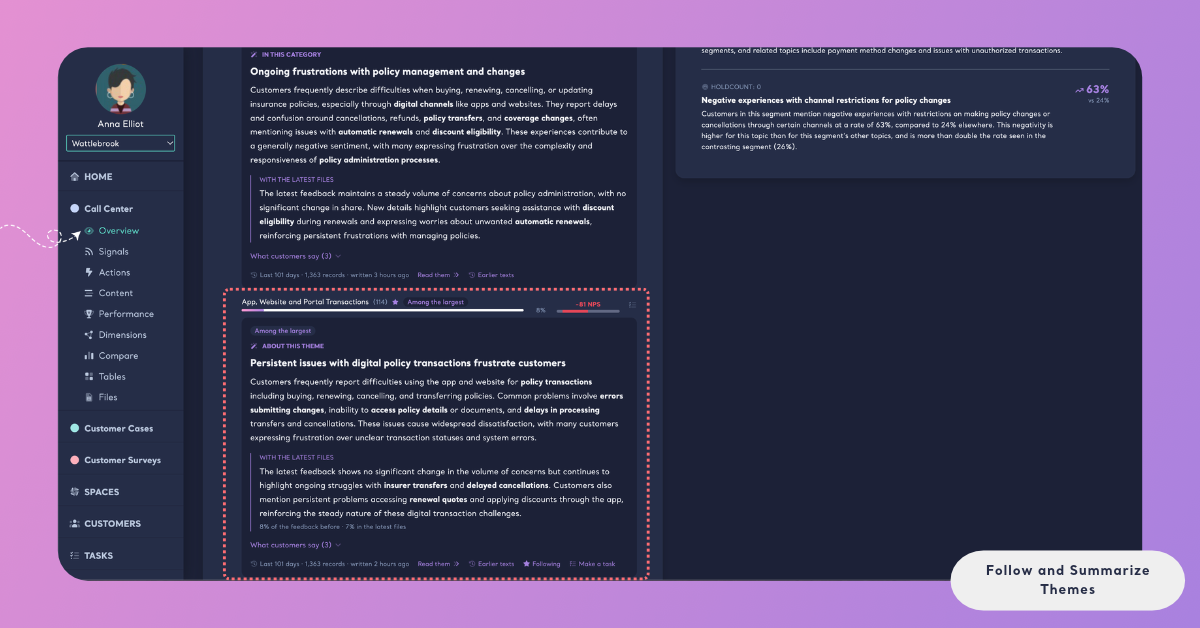
An open theme with an Insight shows About this theme: its text, With the latest files when the latest files changed it, What customers say with 2–3 quotes, and its window line. Follow and Make a task are at the end of the window line, next to Read them and Earlier texts. A theme without an Insight says so and offers Summarize this, Follow and Make a task.
A theme can also be written by the latest update and still show no text. Kimola checks every text against the records it was written from, and it doesn't show a text that too few of those records actually support. Such a theme says "Too few of its latest records say the same thing to write about it." and offers Follow and Make a task, without Summarize this, because the latest update has already tried to write it. The theme gets a text when its feedback changes enough to support one, usually after new files.
You can also reach a theme from the top of the page. The themes listed next to What your feedback says now, under With the latest files and Fading lately, are links: click one and All Themes opens that theme and scrolls to its place. See Overview in Spaces.
Follow a Theme
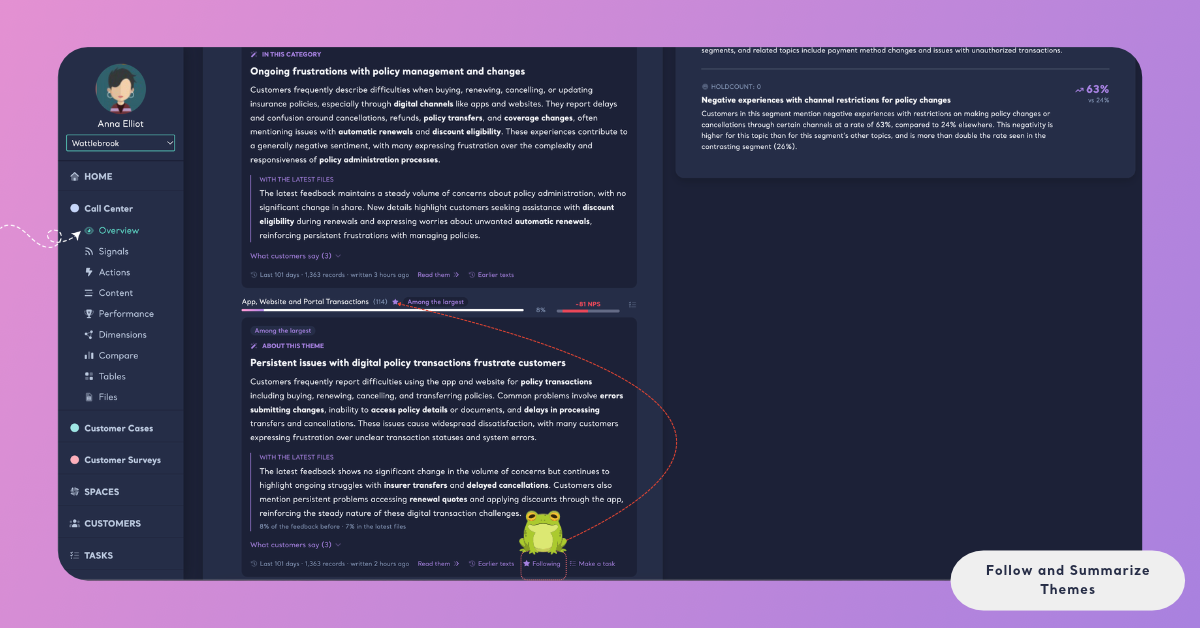
Follow a theme when your team needs its Insight after every file, whether or not Kimola would choose it. Open the theme and click Follow ("Every update of the insights will write it"). The row then carries a star, and from the next update on the theme has the Following chip and its own About this theme text.
A follow is shared by the whole team. Everyone who opens the Space sees the star and reads the same text, and anyone in the team can stop following it.
Following doesn't write the theme right away: its first text comes with the next update, after the next file is classified. If you need the text now, also click Summarize this.
Stop Following a Theme
To stop following, open the theme and click Following ("Stop following: it is written again only when it is chosen"). From the next update on, the theme gets an Insight only when Kimola chooses it for one of its other reasons.
The Follow Limit
A Space can have a limited number of followed themes, and the whole team shares them. When the team reaches that limit, Follow says "Your team follows as many themes as a space can have; stop following one to follow another." Check which themes carry a star, agree with your team on one to stop following, and follow the new one.
Summarize a Theme
Summarize a theme when you want to read about it now and it has no Insight. Open the theme and click Summarize this. The button says Summarizing… while Kimola writes, and the text appears in a few seconds.
A summary is written the way the latest update would have written the theme: from the same records, the latest update's window, with the same rules. Its window line shows that window, and its row carries the Summarized on demand chip. The summary becomes part of the latest update, so everyone in your team who opens the theme reads the same text.
A summary is kept until the next update. The next update writes the theme again only if it is chosen, for example because it moved or because someone follows it.
If your team will want this theme after every file, follow it as well.
When a Theme Can't Be Summarized
Some messages tell you why Kimola didn't write a summary, and what to do next.
- "Too few of the latest records have this theme to write about it." The theme has too little feedback in the latest records. Wait for more files, or read its records on Content.
- "Too few of its latest records say the same thing to write about it." Kimola wrote the text, but too few of the records it read actually say what the text says, so the text is not shown. The theme's feedback is too scattered for one reading; read its records on Content instead.
- "The insights are being updated with the latest files; try again in a few minutes." A new file has been classified and an update is running. Try again when the update completes.
- "It is being written for someone else right now; it will be here in a few seconds." A teammate asked for the same theme at the same time. Its text appears for both of you.
- "This space has had as many themes summarized today as it can; try again tomorrow." A Space has a daily limit on summaries, shared by the team. Try again the next day, or follow the theme so the next update writes it.
- "This space has no insights yet." The Space's first Insights are still being written. Summaries become available once they are ready.
Make a Task from a Theme
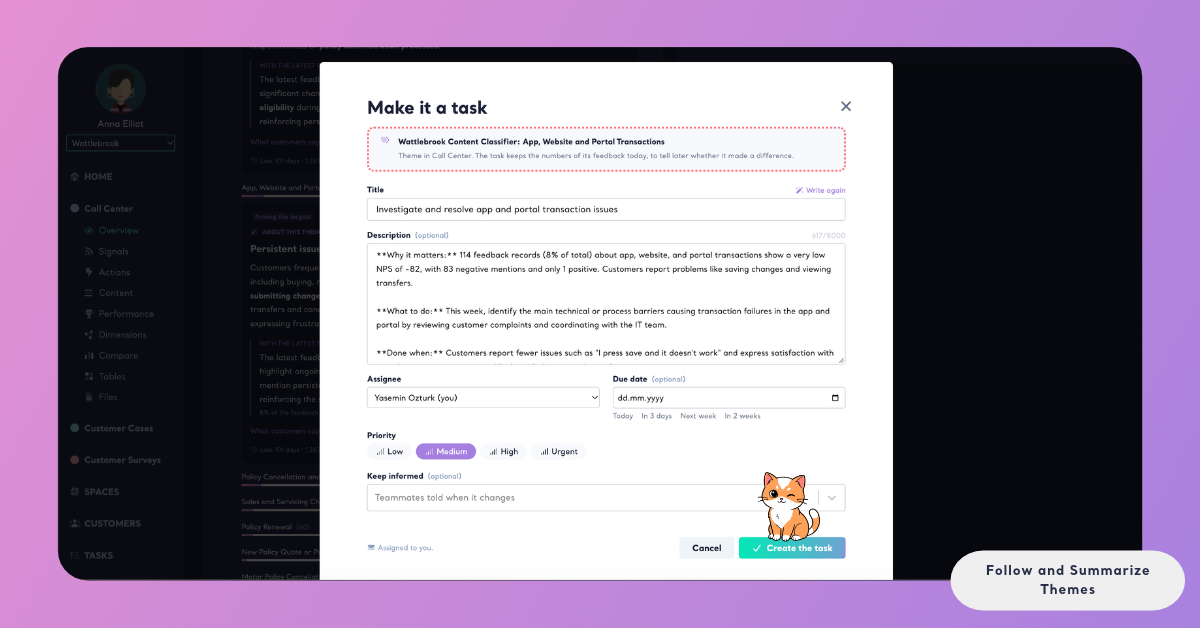
When a theme needs action, make it a Task for the teammate who can act on it. Open the theme and click Make a task. Every theme offers it, whether it has an Insight or not.
The task opens with the theme as its source, shown as Theme, and keeps the theme's numbers and some of its feedback as evidence, frozen as they were when you made the task. Kimola drafts the title and description in your Funnel's language. You choose the assignee, the due date and the priority, and add teammates to keep informed. See Create a Task for every step.
While the task is open, the theme carries the Open task chip and every update of the Insights writes it, so whoever works on the task can read how customers talk about the theme after every file. Once the task is done, Kimola measures the same feedback again to tell whether customers noticed.
What Happens with the Next File
When the next file of the Space is classified, Kimola updates the Insights. Followed themes and themes with an open task are written by that update, with the Following or Open task chip. A summarized theme is written again only if the update chooses it; otherwise it has no Insight in the new update, and Summarize this is offered again. The update writes a text again only where its evidence moved, so a followed theme whose feedback didn't change keeps its text, and Earlier texts shows every text it had before.