Filter Records in Spaces
min read - Updated on Nov 10, 2026You can filter the records of a Space to read only the feedback you need: the records of one theme, sentiment or Dimension answer, of one product or channel, of one period, of one file, or the records that mention a word. Every filter you add shows as a removable chip at the top of the page, every number on the page follows the filters, and the filters are kept in the page address, so a copied link opens the same view for a teammate. You filter records on the Content page of a Space, where you read them one by one.
Spaces are available in the Enterprise package and in Kimola On-Premises. To filter records, sign in to Kimola and open a Space with at least one classified file.
If you don’t have a Space yet, see Create a Space. If you haven’t uploaded your first file, see Add Files to a Space.
Available Filters
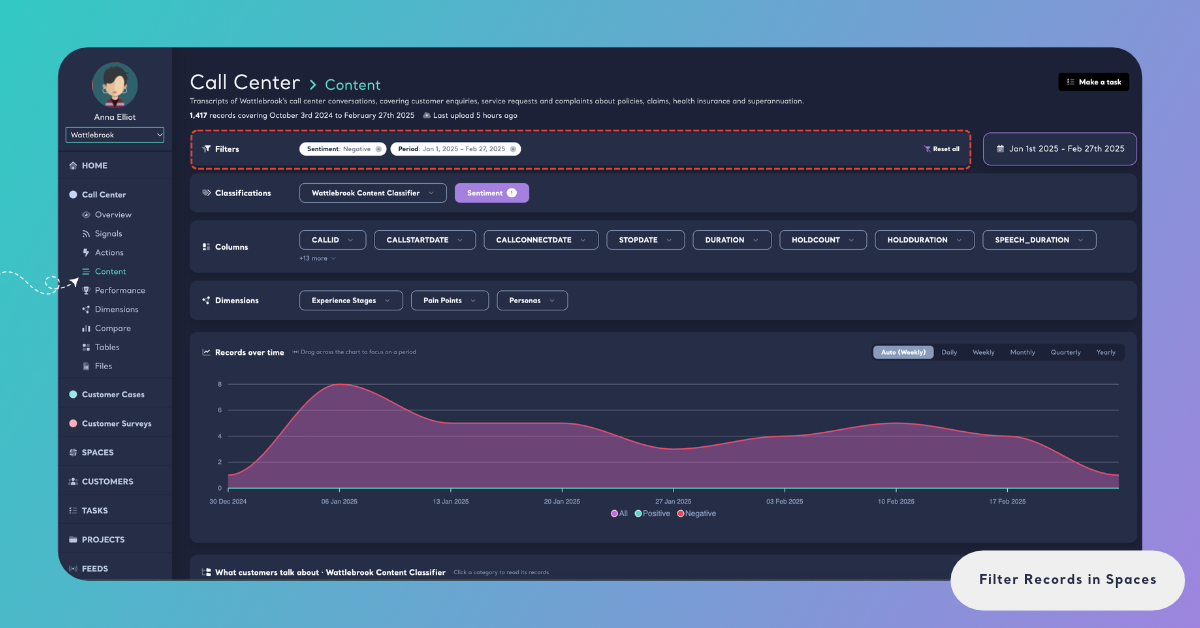
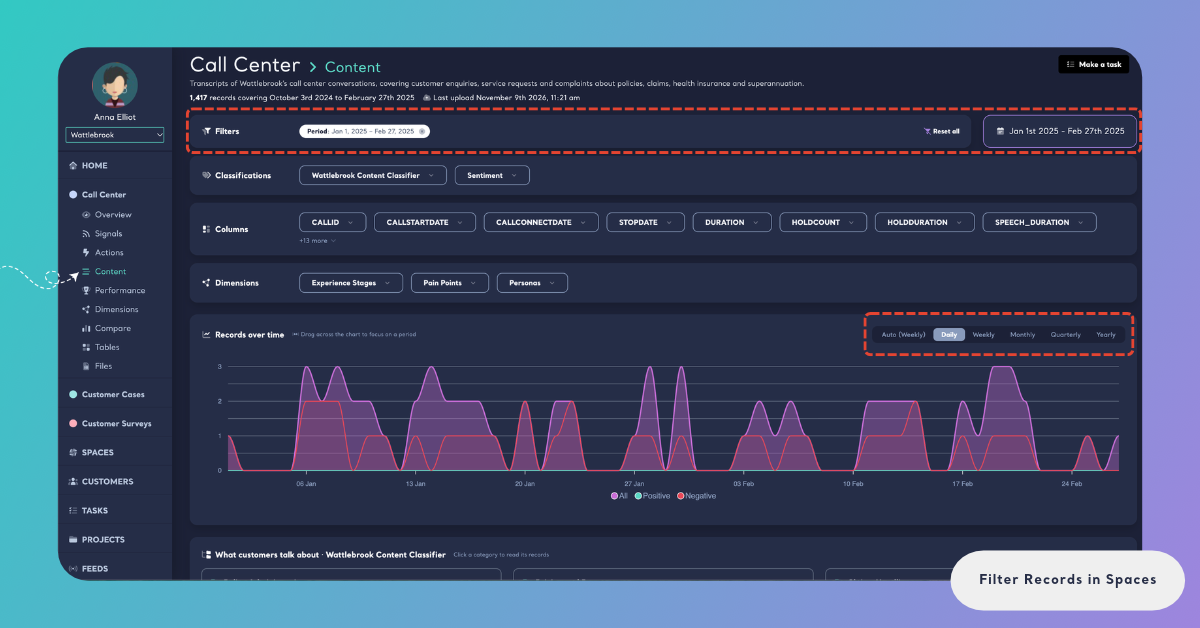
The Filters card at the top of Content lists the filters in use. With none, it says "No filters yet: pick labels and columns below, search in the records, or drag across the chart to focus on a period." You can filter the records of a Space by:
- Text field: One of the Space's text fields, or all of them.
- File: One or more of the files uploaded to the Space.
- Classifications: The labels of each classifier of the Space's Funnel, such as a theme of the content classifier or Negative from the sentiment classifier.
- Dimensions: The answers of each Dimension, such as an answer to Pain Points.
- Columns: The values of the columns of the Space's files that are not classified, such as a product, a channel or a city.
- Search: The words in the texts of the records.
- Words: A word from the Most frequent words card.
- Languages: The language of the texts, when the Space has feedback in more than one language.
- Period: The dates of the records.
Each filter shows in the Filters card as a chip with its name and its values, for example "Sentiment: Negative", "Word: refund" or "Period: Nov 15, 2025 – Dec 10, 2025". When you use several filters, the page shows the records that match all of them. Within one list, such as the labels of a classifier, choosing several values shows the records that have any of them.
Every number on the page follows the filters: the Records over time chart, the What customers talk about categories, the Most frequent words and the records. Above the records, a line tells you what the filters leave, for example "1,274 of 3,059 records (41.6%)". If no record matches, the page says "No records match these filters".
The Dimensions, Performance, Compare and Tables pages of a Space have the same Filters card, with labels, columns and a period, so you can see how the questions are answered, how the themes perform, how groups compare or what a table counts for a part of the feedback.
Each page keeps its own filters: when you open another page from the menu, it starts without filters.
The Insights of a Space don't follow the filters. They always read the Space's latest records, and the Dimensions page says so: "The insights read the space's latest records, not the filters above."
Filter by Text Field
A Space can classify more than one text column of the same row, such as what customers liked and what they would improve in a survey. You name these text fields when you upload the first file (see Add Files to a Space), and Kimola gives every text field its own theme, sentiment and Dimension answers.
When the Space has more than one text field, you can read the records through one text field or all of them. Choose a text field, and the page shows that field's text in every record, with the labels Kimola gave that text. The chart, the categories, the words and the counts follow it too, and the search box searches that field: "Search in Feedback, e.g. claim, refund*". The filter shows as a chip such as "Text field: Feedback". Choose all of them to read every text field of a row together.
A record still counts once, whatever its number of text fields. A record that gets the same theme in two of its text fields counts once for that theme, so the counts on the page stay counts of rows.
Filter by File
A Space grows file by file, and every record belongs to the file it came in with. The file filter shows only the records of the files you choose, for example the latest upload, so you can read what a new file brought before it mixes with the history of the Space.
The file filter is set by the links that open Content. A Signal in a Space can compare a file with the records before it, and its Open in Content link opens the records of that file. The filter shows as a chip such as "File: 1 file". You can add other filters next to it and remove it like any other chip.
To put files side by side instead, open Compare in the Space and choose Files. See Compare in Spaces.
Filter by Labels, Dimensions and Columns
Below the Filters card, three cards hold the filters you will use most. Classifications has a button for each classifier of the Funnel, Columns a button for each column that is not classified (+5 more shows the rest when there are many), and Dimensions a button for each Dimension of the Funnel.
Step 1: Open a Filter
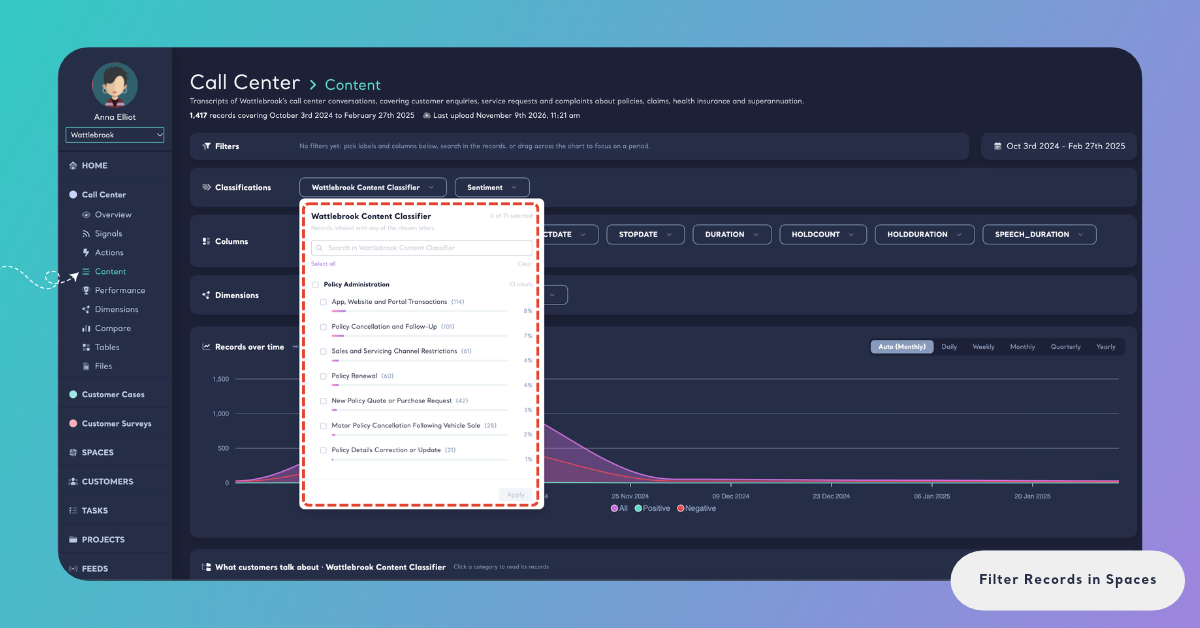
Click a button, such as the content classifier, Sentiment, a column or a Dimension. A list opens with the button's name and how many of its values are chosen, for example "0 of 84 selected".
Step 2: Choose the Values
Tick the values you want to read. Each value shows how many records have it, and the search box at the top ("Search in Pain Points") finds a value by name. Select all ticks every value and Clear unticks them.
The list of a content classifier groups its labels under their categories. Tick a category to choose every label in it. The list of a column shows its most frequent values first, for example "The 10 most frequent of 232 values"; click Show all 232 values to see the rest.
Step 3: Apply
Click Apply. The filter shows as a chip in the Filters card, and the button shows the number of values you chose. You can add more filters the same way: each one narrows the records further.
Filter from a Record or a Category
Every value on a record card is a filter too. Click a column value, a theme, a sentiment or a Dimension answer on a record to see every record that has it. In What customers talk about, click a category card to filter the page to every label of that category.
Search the Records and Filter by Words
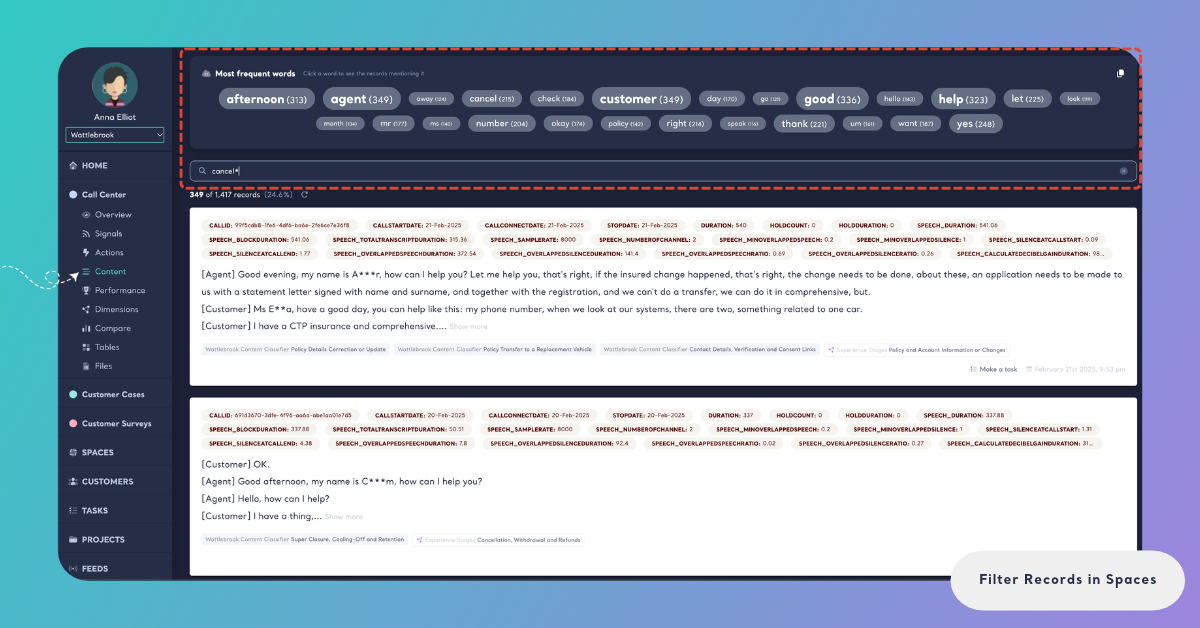
The search box above the records finds records by the words in their texts: "Search in the records, e.g. claim, refund*". Type a word and press Enter. The search shows as a chip such as "Search: “refund*”".
An asterisk at the end of a word finds every word that starts with it, so refund* finds refund, refunds and refunded.
The Most frequent words card shows the words that appear most often in the records you are reading. Click a word to see the records mentioning it. It shows as a chip such as "Word: refund".
Because the words follow the other filters, you can first filter the records to a negative theme and then click the words customers use most when they talk about it.
When the texts of the Space are in more than one language, the menu next to the search box (All languages) shows the records of one language only.
Filter by Date
The period of the records you are reading is on the right of the Filters card, for example "Oct 3rd 2024 - Feb 27th 2025". The dates come from the Date Column you chose for the Space.
To choose the dates, click the period. Space Range covers every record of the Space, and Custom Range lets you pick the first and last day on the calendar. Click Apply to filter the records to those dates.
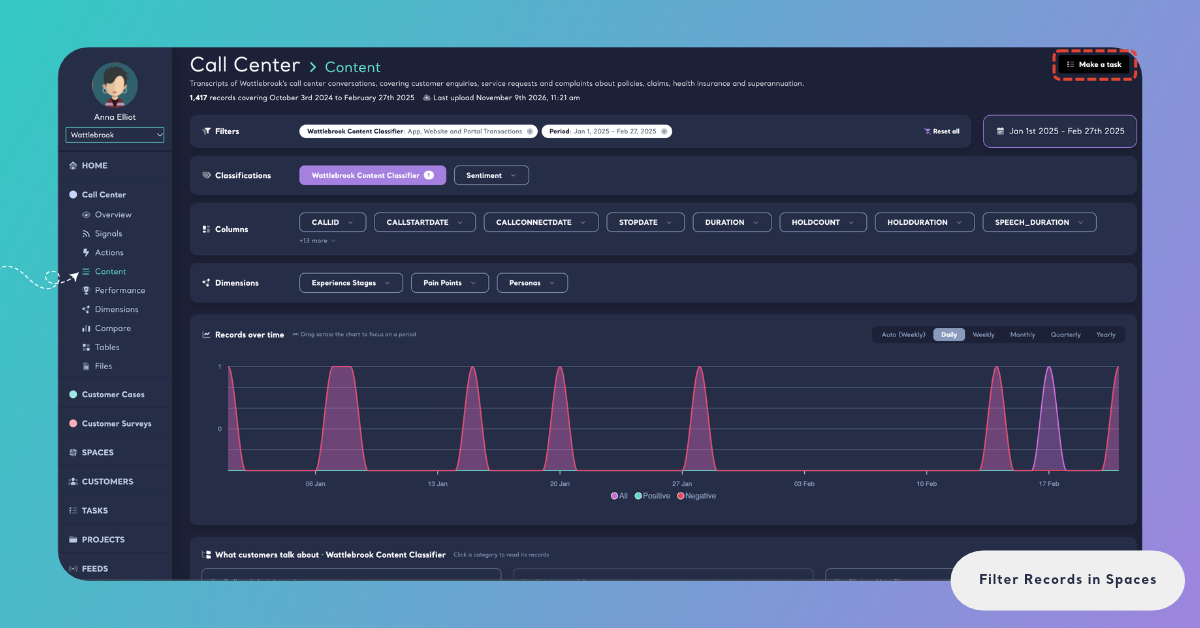
You can also drag across the Records over time chart to focus on a period. The records, the categories and the words change to that period, and the dates show as a chip such as "Period: Jan 1, 2025 – Feb 27, 2025".
Remove Filters
Click the cross on a chip to remove that filter, or click Reset all in the Filters card to remove every filter at once. When no record matches the filters, the page offers the same two ways out: "Remove a filter above, or reset them all".
To change a filter of a list, open its button again, change the ticked values and click Apply.
Share a Filtered View
The filters of a page are kept in its address. Copy the link from your browser and send it to a teammate: it opens the same page with the same text field, labels, columns, words, search and dates.
A copied link is how you keep a view you want to come back to, and how you show a manager the feedback behind a number.
Other pages of the Space use the same address to send you to Content already filtered. A Signal's Open in Content link opens the records of the group it describes, and Read them under an Insight opens the records of its theme or Dimension answer within the dates of the Insight's window. The filters show as chips, and you can change or remove them as usual.
Make a Task of a Filtered View
When filters are on, a Make a task button appears at the top right of Content: "Make a task of the feedback these filters show". The task keeps the filters, so its evidence is the same records you are reading, and after the task is done Kimola measures the same feedback to tell whether customers noticed the change. Kimola drafts the title and the description in the language of the Space's Funnel, and you choose the teammate the task is for. See Create a Task.