Create a Funnel
min read - Updated on Nov 12, 2026You create a Funnel to decide how every piece of feedback in your Spaces is classified: which custom models label it, whether one piece of feedback can get several labels, and which language Kimola writes the analyses of its Spaces in. Creating one takes three steps in a wizard: Models, Structure and Naming. Once it is created, everyone in your team can pick it for a new Space.
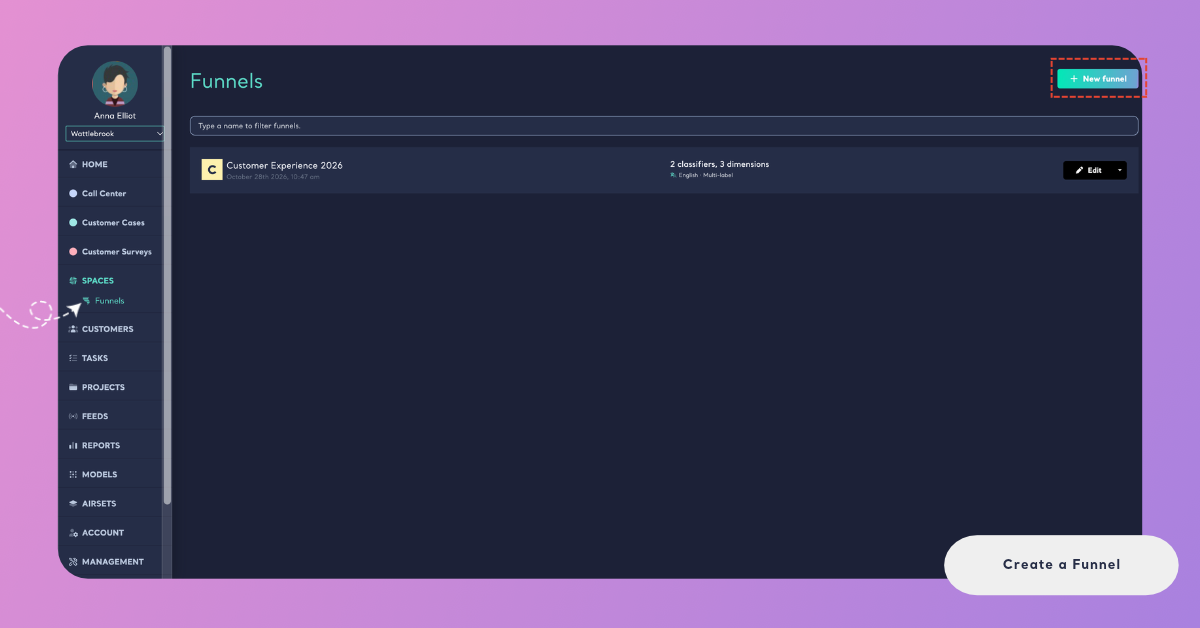
You start from Funnels under Spaces in the main menu, where New funnel opens the wizard. If your team has no Funnel yet, the page says "One language for all your feedback" and offers Create a Funnel, which opens the same wizard.
Sign in to your Kimola account with the Enterprise package or to your organization’s Kimola On-Premises installation. Before creating a Funnel, make sure the custom models you want to use are available in Models and that each has labels. If you need to create a model, see Create a Custom Model with a Prompt.
Step 1: Choose Models
The first step is Models: "Choose the custom models every piece of feedback in your spaces will be classified with." Your custom models are listed on two tabs, Classifiers and Dimensions. Each row shows the model's name, how many labels it has and its kind, such as Content Classifier, Sentiment Classifier or Pain Points dimension.
Click a model to add it to the Funnel. It is marked with a check, and it appears under Your Funnel at the bottom of the wizard with its kind, together with the number of models chosen so far. The tab also shows how many of its models you chose. To take a model out, click it again in the list or click the × next to it under Your Funnel.
If you click another model of a kind you already added, it takes the place of the first one, and the wizard says so, for example "… took the place of …: a funnel takes one Content Classifier."
Type in the field above the list to filter the models by name, and use the icon at the end of a row to open a model in a new tab and check its labels before you add it.
On Classifiers, you can add one content classifier and one sentiment classifier. The note next to the tabs explains the rule: "One model of each kind, so every space gets the same labels." None of the kinds is required, but each one adds something to your Spaces: the content classifier gives them their themes, and a Space's NPS is calculated from the sentiment classifier. On Dimensions, every Dimension model asks one question, such as Pain Points ("What goes wrong or creates difficulty?") or Experience Stages ("When does this occur?"), so a Funnel can hold several Dimensions, one of each kind. A Funnel with a Pain Points model, an Experience Stages model and a Personas model answers all three questions for every piece of feedback. See Add Dimensions to a Funnel.
Build the content classifier around the products, processes and problems your teams already name: its labels become the themes of every Space that uses the Funnel. See Organize Labels into Categories.
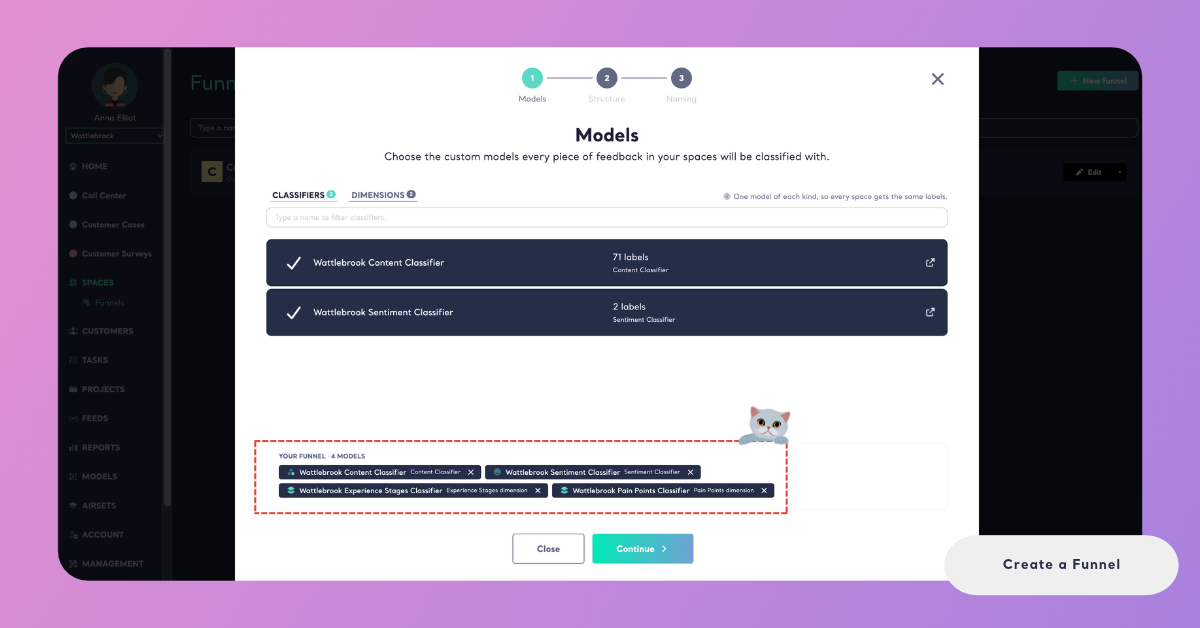
If you have no custom model yet, the step links to Create one in Models. Create the models there, then open the wizard again with New funnel. When your models are listed under Your Funnel, click Continue.
Step 2: Choose the Structure
The second step is Structure: "Choose how feedback will be labeled by the models of your funnel." It has one switch, Enable Multi-label Classification, which is on when the step opens. With it on, Kimola assigns several labels when one piece of feedback mentions different aspects, which gives a more complete view of strengths and weaknesses. With it off, every piece of feedback is grouped under one main theme.
Take this review of an online store: "The courier was friendly and my refund came quickly, but the checkout page kept freezing and the app logged me out twice." With multi-label classification, it gets four labels: Courier Service and Refund Speed as positive, Checkout and Mobile App as negative. With a single label, it gets one: Online Shopping Experience.
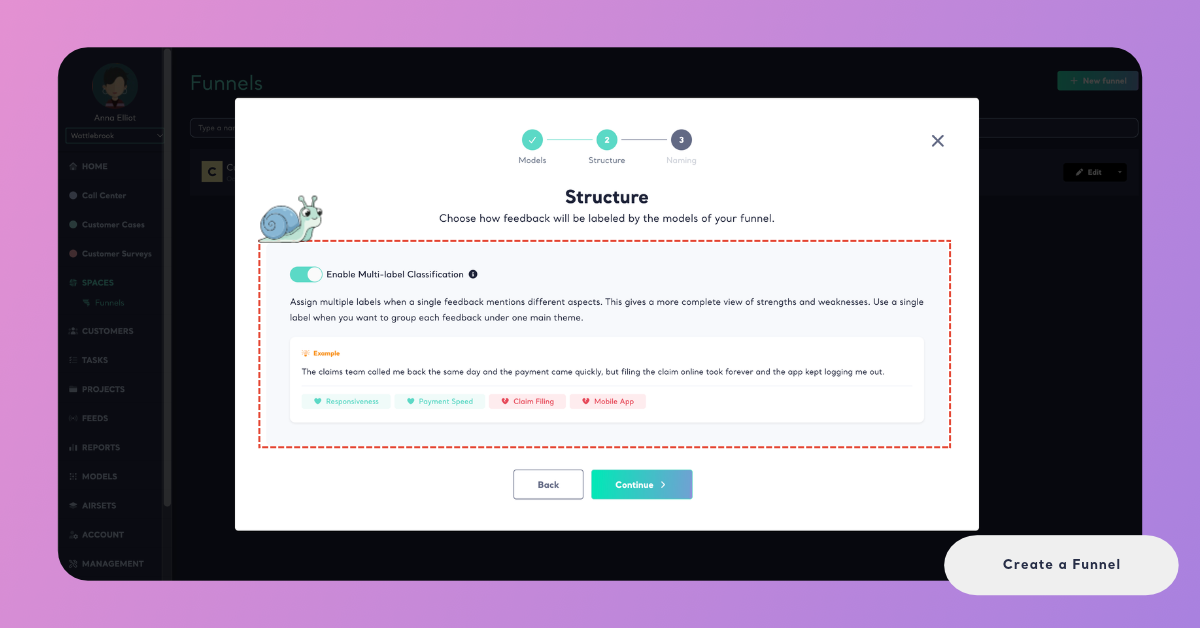
Multi-label classification suits feedback that covers several topics at once, such as call center conversations and long survey answers, because no topic of the feedback is lost. A single label suits short feedback, or a team that wants every piece of feedback counted under exactly one theme. The choice applies to every Space that uses the Funnel. See Multi-Label vs. Single-Label Classification. Click Continue, or Back to change the models.
Step 3: Name the Funnel and Choose a Language
The last step is Naming: "Give your funnel a name your team will recognize when they pick it for a space." Type the name in the field that says "Give a name to your funnel." Your teammates see this name in the first step of creating a Space, next to the number of models, the language and the names of the models.
Name the Funnel after what it classifies, for example "Online Store Feedback" or "Retail Banking". A name such as "Test" or "New funnel 2" tells your teammates nothing when they have to choose.
Below the name, choose the Language of the analyses: "Dimension analyses, signals and action plans of its spaces are written in this language." The options are English, Spanish, French, German, Portuguese, Dutch and Turkish, and English is selected when the step opens. The same language is used for the Insights of its Spaces and for the drafts of Tasks. When you write an Action Plan from a Space, its output language starts as the Funnel's language. The language of the feedback itself doesn't matter: Kimola analyzes feedback in 30+ languages, and the Funnel's language only sets the language of what Kimola writes.
Next to the fields, the Summary lists every model of the Funnel with its kind and the structure you chose, for example "Multiple labels per feedback". It also tells you how many queries the Funnel will use. Check the summary before you create the Funnel.
Every model and every Dimension uses queries: queries = rows × models × Dimensions. See How to Calculate Queries, and for package limits, kimola.com/pricing.
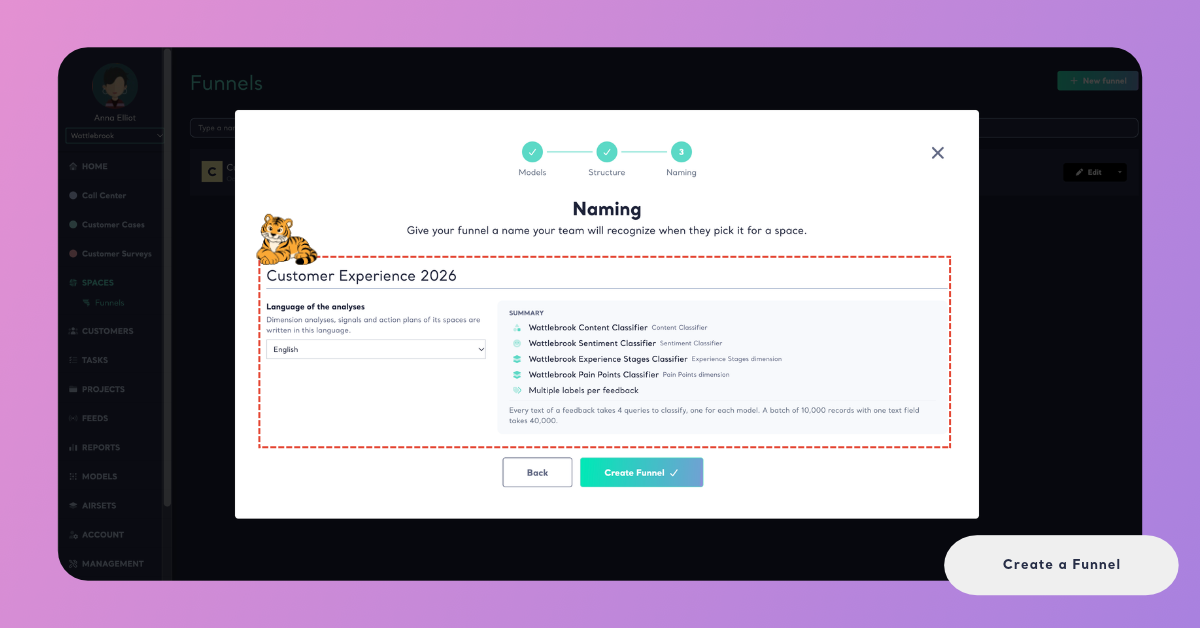
Click Create Funnel. If something is missing, the wizard says what to fix. Without a name, it says "Please enter a name for your funnel." If a model you chose has lost its labels in the meantime, it says "One of your models has no labels anymore. Please go back and choose another one." Click Back to fix the models. If the Funnel can't be saved for another reason, the wizard shows "An unknown error occurred while saving the funnel."; try again.
What Happens Next
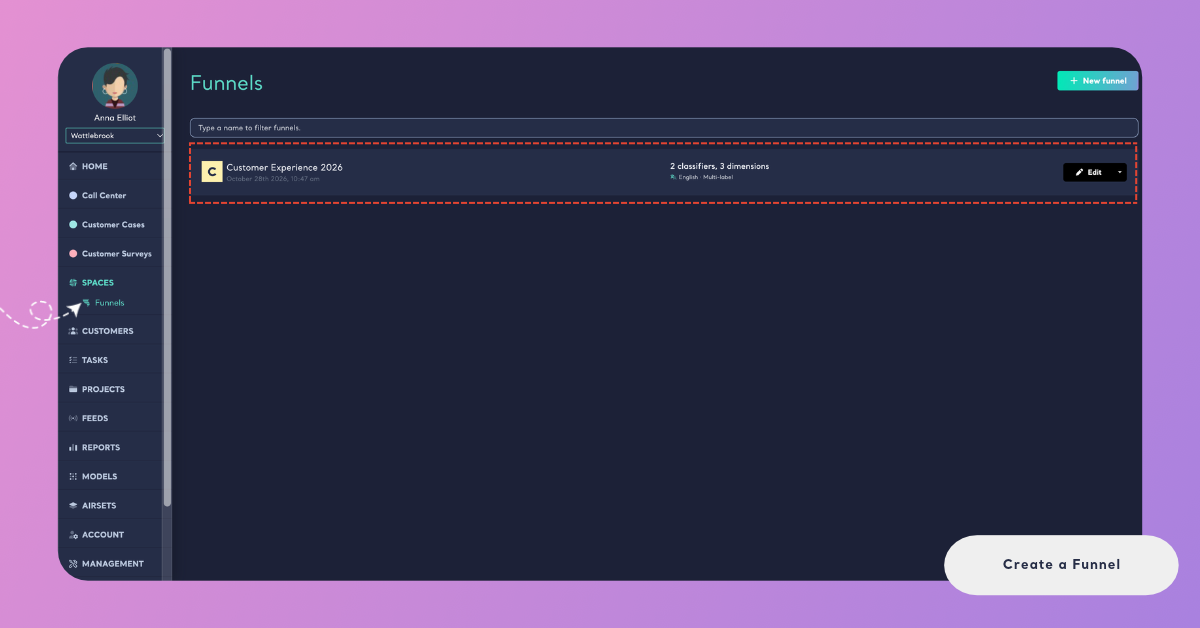
Kimola confirms with "The funnel is saved." The Funnel appears on the Funnels page with its name, its date, its models counted (for example "2 classifiers, 3 dimensions"), its language and its structure (for example "English · Multi-label"), and Edit. Funnels belong to the whole team, so everyone in it sees the new Funnel at once.
A Funnel classifies nothing on its own. Its work starts when a Space uses it: the first step of creating a Space is choosing its Funnel, and every file of that Space is then classified with the Funnel's models.
Spaces with the same Funnel get the same themes, sentiment and Dimension answers. A channel that needs a different set of themes or a different language needs a Funnel of its own. A Space keeps the Funnel it was created with, so choose the Funnel for each channel with care. See Create a Space.
To change a Funnel later, use Edit on the Funnels page. A change applies from then on: the records already in its Spaces keep the classification they got, and the change shows in the files uploaded after it. A Funnel used by a Space can't be deleted, and deleting a Funnel keeps its models in Models. See Manage Funnels.