Add Dimensions to a Funnel
min read - Updated on Nov 03, 2026You add Dimensions to a Funnel so that every Space using it asks the same research questions of every piece of feedback, such as Pain Points ("What goes wrong or creates difficulty?") or Personas ("Who is experiencing this?"). You do it in two parts: first you create a Dimension model in Models, then you pick it in the Models step of the Funnel wizard, on the Dimensions tab. From then on, every file uploaded to the Funnel's Spaces is classified with that Dimension, and the Space's Dimensions page shows its answers.
A Report and a Space get their Dimensions in different ways. A Report lets you choose Dimensions from Kimola's list while you create it, as described in Add Dimensions to a Report. A Space doesn't choose Dimensions itself: it uses the Dimension models of its Funnel, so the same questions are asked in a call center Space, a survey Space and a social media Space, and their answers compare side by side.
To add Dimensions to a Funnel, you need a Kimola account with the Enterprise package or access to Kimola On-Premises. If you don’t have an account yet, sign up first.
You can include Dimensions when creating a new Funnel or add them to an existing one. If you’re setting up your first Funnel, see Create a Funnel.
You’ll also need a Dimension model with at least two defined labels. If you haven’t created one yet, follow Create a Dimension Model below.
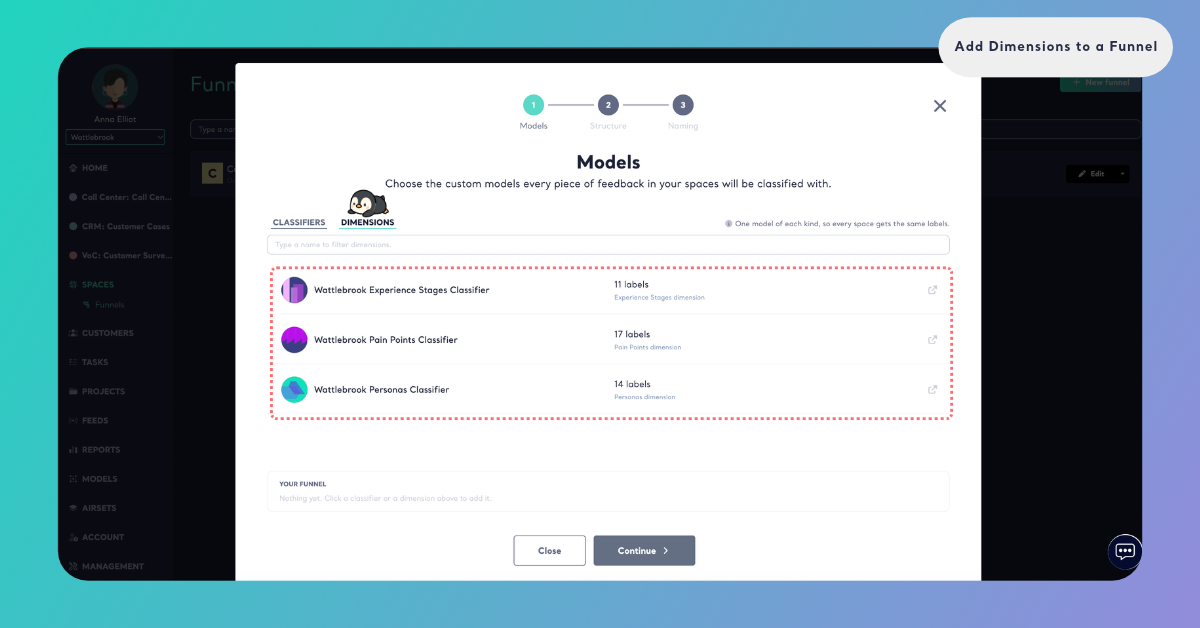
Dimension Models
A Dimension model is a custom model created with the purpose Dimension. The model creation wizard describes the purpose as one that "Answers an analytical question about your feedback, such as who is talking or what goes wrong." A classifier tags feedback with labels you define, such as topics or sentiment. A Dimension model asks one question of each piece of feedback, and its labels are the possible answers to that question.
Every Dimension model is built on one Dimension. You can choose one of the 10 Dimensions of Kimola's catalog: Motivations, Pain Points, Unmet Needs, Personas, Experience Stages, Experience Context, Social Context, Underlying Causes, Substitutions and Co-Occurrences. Each comes with its question and a description, which you can fine-tune for your business. You can also choose Custom Dimension and write your own question for the model to answer, for example "Which channel did the customer try before contacting us?".
The Dimension a model is built on is its kind. In the Funnel wizard, a Pain Points model is shown as "Pain Points dimension" and a model with your own question as "Custom dimension". A Funnel takes one model of each kind, so it can hold a Pain Points model, an Experience Stages model and a Personas model together, but not two Pain Points models. A model with your own question counts as the kind Custom dimension, so a Funnel holds one of those as well.
The labels of a Dimension model decide the answers your Spaces can give. Every Space that uses the Funnel then counts its feedback under the same answers, in the same words.
A Pain Points model for an online grocery store could have labels such as Late Delivery, Missing Items, Substituted Products and App Crashes at Checkout, each with a short description.
Create a Dimension Model
Dimension models are created with a prompt. Open Models in the main menu, click Create AI Model and choose By Prompt. The wizard has three steps: Purpose, Labels and Naming. The full walkthrough is in Create a Custom Model with a Prompt; the points that matter for a Dimension model are below.
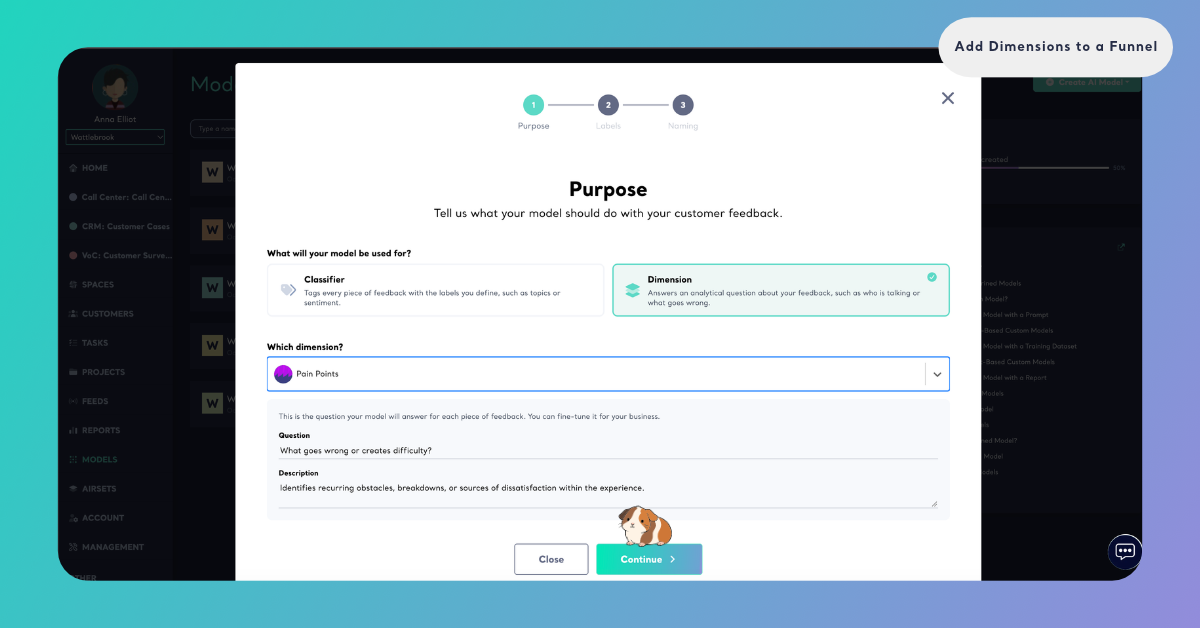
In Purpose, under "What will your model be used for?", click Dimension. Then open Which dimension? and either choose a Dimension from Kimola's catalog or choose Custom Dimension. When you choose a Dimension from the catalog, its Question and Description are filled in for you: "This is the question your model will answer for each piece of feedback. You can fine-tune it for your business." When you choose Custom Dimension, write the question and a description of what the model should find. Click Continue.
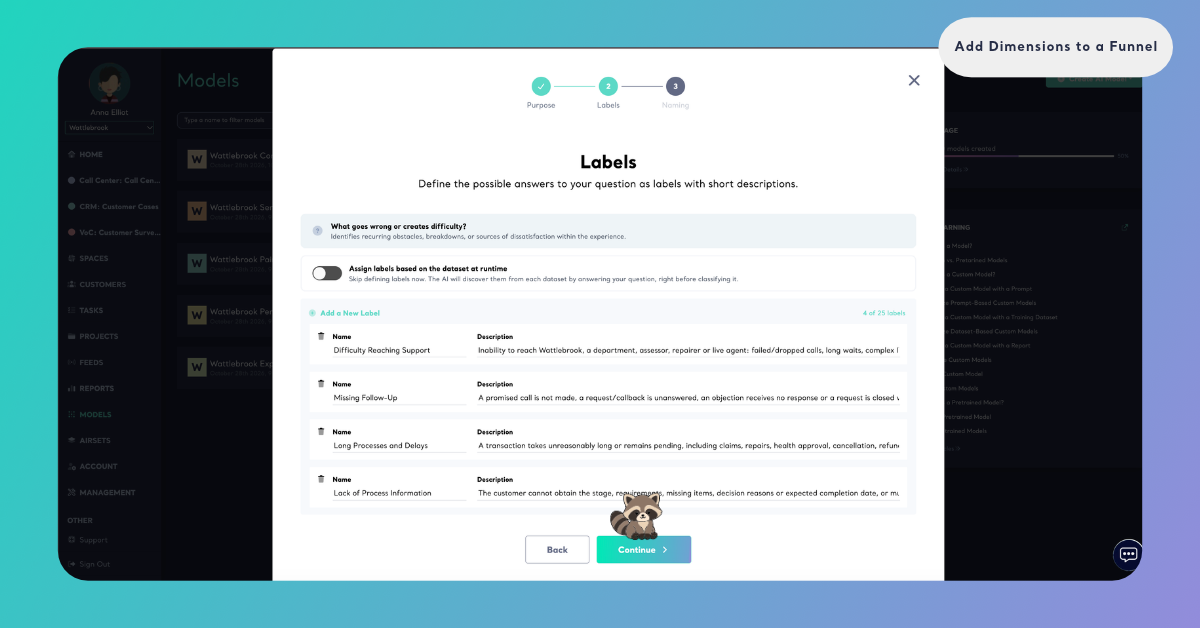
In Labels, "Define the possible answers to your question as labels with short descriptions." Give each label a name and a description, and add at least two labels. Write the labels for the feedback your Spaces will receive: the products, steps and problems your teams already name. The same step offers Assign labels based on the dataset at runtime, which skips defining labels and lets the AI discover them from each dataset.
A Funnel needs a Dimension model with labels, so define them here. A model without labels isn't offered in the Funnel wizard.
In Naming, give the model a name your team will recognize when they build a Funnel, for example "Pain Points – Online Store". Once the model is created, it appears in Models with its number of labels and its kind.
Pick Them in the Funnel Wizard
You add Dimension models in the first step of the Funnel wizard, Models. Open Funnels under Spaces in the main menu. To build a new Funnel, click New funnel. To add Dimensions to a Funnel you already have, click Edit next to it. Either way, the wizard opens on Models: "Choose the custom models every piece of feedback in your spaces will be classified with."
Click the Dimensions tab. It lists your Dimension models, each with its name, its number of labels and its kind, such as "Experience Stages dimension". Type in the field above the list ("Type a name to filter dimensions.") to find a model by name. If you have no Dimension model yet, the tab says "You have no dimension yet" and links to Create one in Models.
Use the icon at the end of a row to open the model in a new tab and check its labels before you add it.
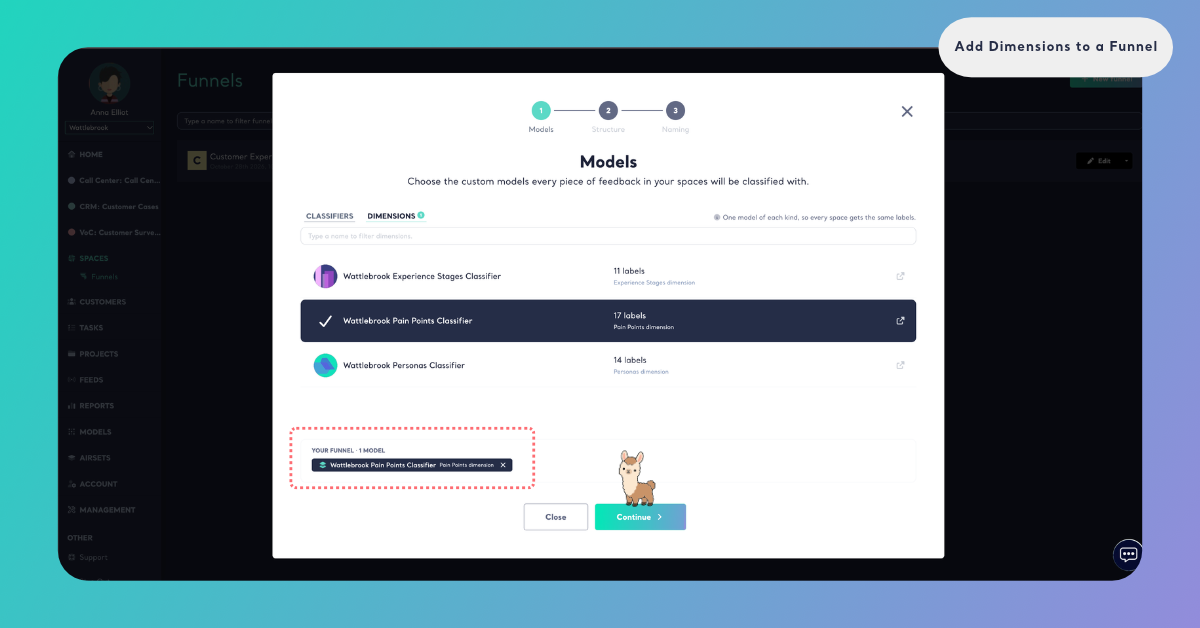
Click a model to add it. It is marked with a check and appears under Your Funnel at the bottom of the step, with its kind, next to the classifiers you chose on Classifiers. Click other Dimension models to add them as well, one of each kind. If you click a model of a kind the Funnel already has, the new model replaces the old one, and the wizard says so, for example "Pain Points – Online Store took the place of Pain Points – Stores: a funnel takes one Pain Points dimension." To take a model out, click it again in the list or click the × next to it under Your Funnel.
Dimensions add to the queries every file of the Funnel's Spaces uses: queries = rows × models × Dimensions. Add the Dimensions your teams will read. See How to Calculate Queries, and for package limits, kimola.com/pricing.
Click Continue and go through Structure and Naming. The Language of the analyses you choose in Naming is the language Kimola writes the Dimension analyses of the Funnel's Spaces in, together with their Signals, Insights and Action Plans. The answers of a Dimension come from the labels of its model, in the words you gave them. Click Create Funnel, or save your changes when you edit a Funnel, and Kimola confirms with "The funnel is saved." The steps of the whole wizard are in Create a Funnel.
When you edit a Funnel and one of its models can no longer be used, for example because it has no labels anymore, the wizard names it under Your Funnel: "… can no longer be in a funnel and will be left out when you save." Choose another model of that kind, or save without it.
What Happens Next
The Funnel's Dimensions start working with the next file. Every file uploaded to a Space that uses the Funnel is classified with its Dimension models, and each piece of feedback gets the answers it gives to each question. Feedback that says nothing about a question gets no answer for that Dimension.
Adding a Dimension to a Funnel changes nothing in the past. The records already in its Spaces keep the classification they got, and the new Dimension shows in the files uploaded after the change. See Manage Funnels.
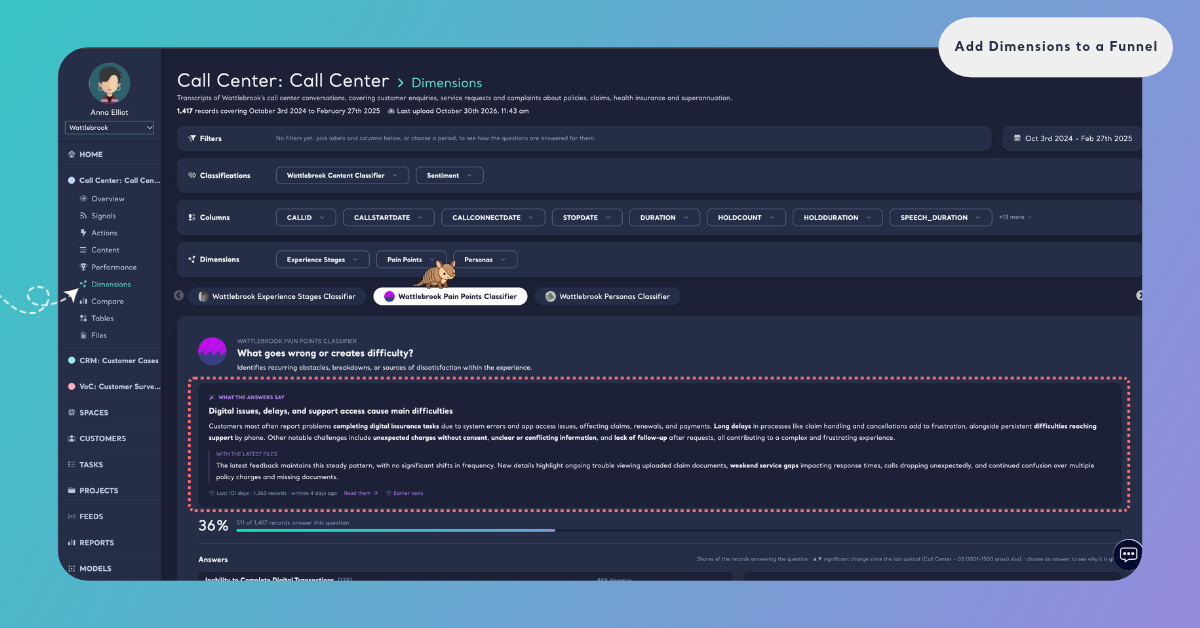
In the Space, each Dimension appears on the Dimensions page with its answers, their share of the feedback and how they change Over time. Kimola writes Insights for them after every new file: What the answers say for each Dimension and Why they answer so for each answer, once at least 10 of the Space's latest records give it. See Dimensions in Spaces.
The answers also work across the rest of the Space: you can filter Content and Performance by an answer and cross a Dimension with a column or a classifier in Tables, for example Pain Points by region. The pages of Customers and Departments show which answers their feedback gives as well.