Manage Spaces
min read - Updated on Nov 11, 2026The Spaces page lists every Space in your account, and it is where you find a Space, change its name, upload a file to it or delete it. Each Space is one row with its NPS ring, the date of its last upload, its record count and the dates its records cover. What you change here changes for your whole team: a renamed Space shows its new name in everyone's main menu, and a deleted Space is gone for everyone.
You open the page from Spaces in the main menu.
Sign in to your Kimola account with the Enterprise package or to your organization’s Kimola On-Premises installation. You’ll need an existing Space to follow this guide. If your team hasn’t set one up yet, see Create a Space.
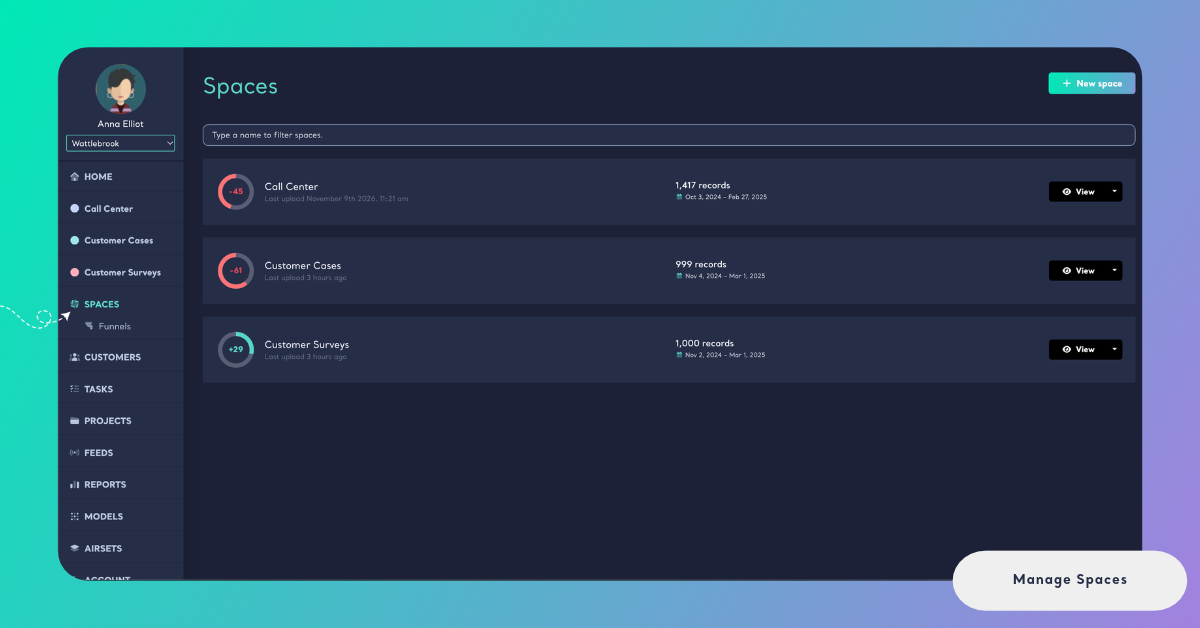
Find a Space
Your Spaces are listed in two places. The main menu shows each Space by name right under Home, with a colored dot; click one to open it, and its pages (Overview, Content, Files and the rest) open under its name. The Spaces page under Spaces shows them as a list with their numbers, and it is the page this article is about.
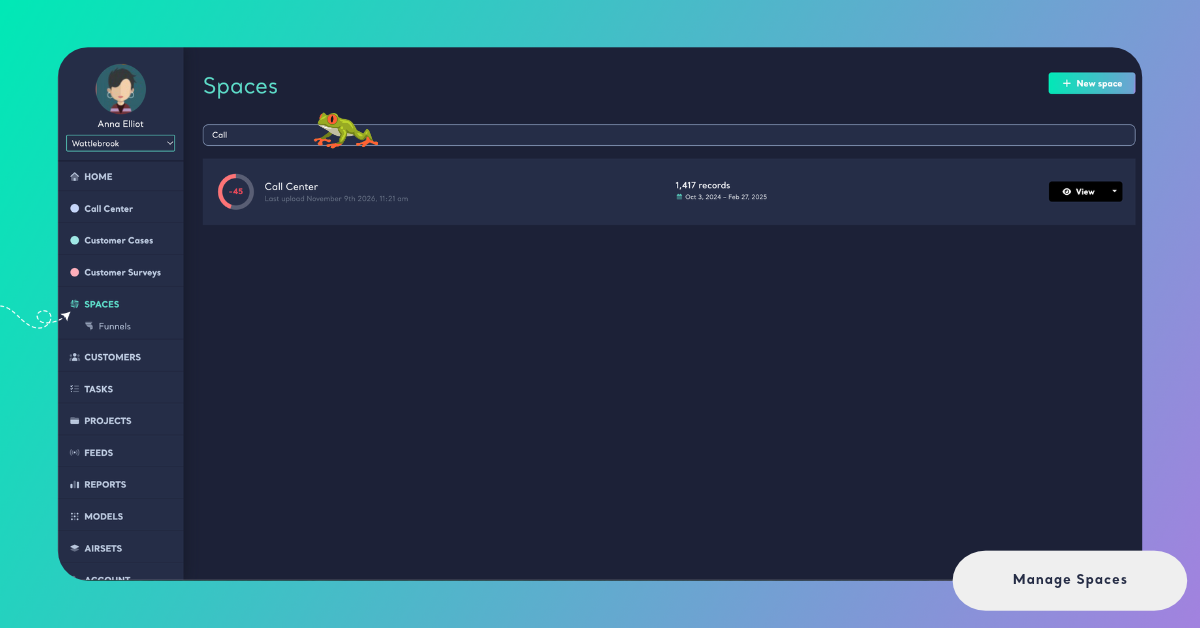
To find a Space by name, type in the Type a name to filter spaces. box at the top of the list. The list narrows as you type. When no Space has the name you typed, the page says "No space matches" followed by your text. A long list loads more Spaces as you scroll down.
The filter is kept in the page address, so you can copy the link and share the filtered list.
Each row reads from left to right. The ring on the left is the Space's NPS, from −100 to 100: green clockwise for positive feedback, red counterclockwise for negative feedback. Hover over the ring to see the value. A Space shows no NPS until its Funnel has a sentiment classifier and the Space has classified records, and the ring then says "No NPS yet: it needs a sentiment classifier in the funnel and classified records". See How NPS Is Calculated in Spaces.
Next to the ring is the Space's name. Hover over the name to read its description. Under the name, "Last upload" gives the date of the latest file (hover for the exact time). A Space that has never had a file shows No upload yet here, and in the middle of the row it shows No data yet with "Its first file sets its schema".
The middle of the row gives the number of records in the Space and the dates they cover, from the earliest record to the latest one. A spinning icon next to the record count means a file is still being classified; hover over it to read "New data is being analyzed". The new file's records join the count once it is classified.
On the right, View opens the Space. The arrow next to View opens a menu with three actions: Upload data, Edit and Delete. For a Space without a file, the first one reads Upload the first file.
Upload data opens the same upload steps as the Space's Files page, so you can add a file without opening the Space first. When the file is uploaded, Kimola says the file "is uploaded to" the Space "and is being classified". The steps are in Add Files to a Space.
Edit a Space
You can change a Space's name. Click the arrow next to View and choose Edit. The row turns into a small form with the Space's name.
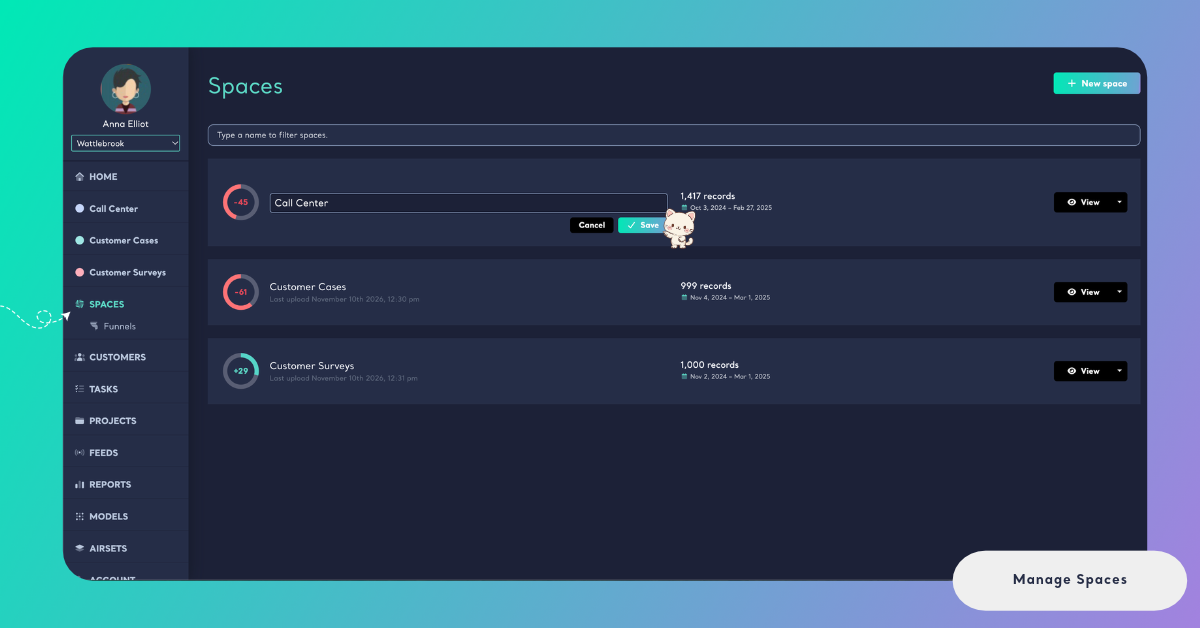
The name holds up to 100 characters and can't be left empty.
Name a Space after the channel its feedback comes from (Call Center, Social Media, NPS Survey). A channel name stays right as the Space grows, while a name such as "October export" goes out of date with the next file.
Click Save to keep your changes. The page shows "The space is saved." and the new name appears in the main menu, on the list and everywhere else the Space is named. Click Cancel, or press Escape, to close the form without saving. If the change can't be saved, the page shows "The space could not be saved, please try again."
The Funnel and the schema of a Space are not part of Edit. A Space keeps the Funnel it was created with, so its first file and its latest file are classified with the same models and stay comparable. To classify a channel with another Funnel, create a new Space with that Funnel. The schema is set by the first file. If it is wrong, take back the Space's files: when the last file is taken back, the schema is cleared and the next file sets a new one. See Take Back a File from a Space. A Customer Column can still be added later on the Space's Files page; see Add a Customer Column to a Space.
Delete a Space
Click the arrow next to View and choose Delete. Kimola asks you to confirm and tells you how much goes with it, for example: "Are you sure you want to permanently delete Call Center? Its 3 files and 1,417 classified records are deleted with it." Click Yes, delete it to delete the Space, or close the window to keep it.
Deleting a Space removes it and everything in it for your whole team, and it can't be undone.
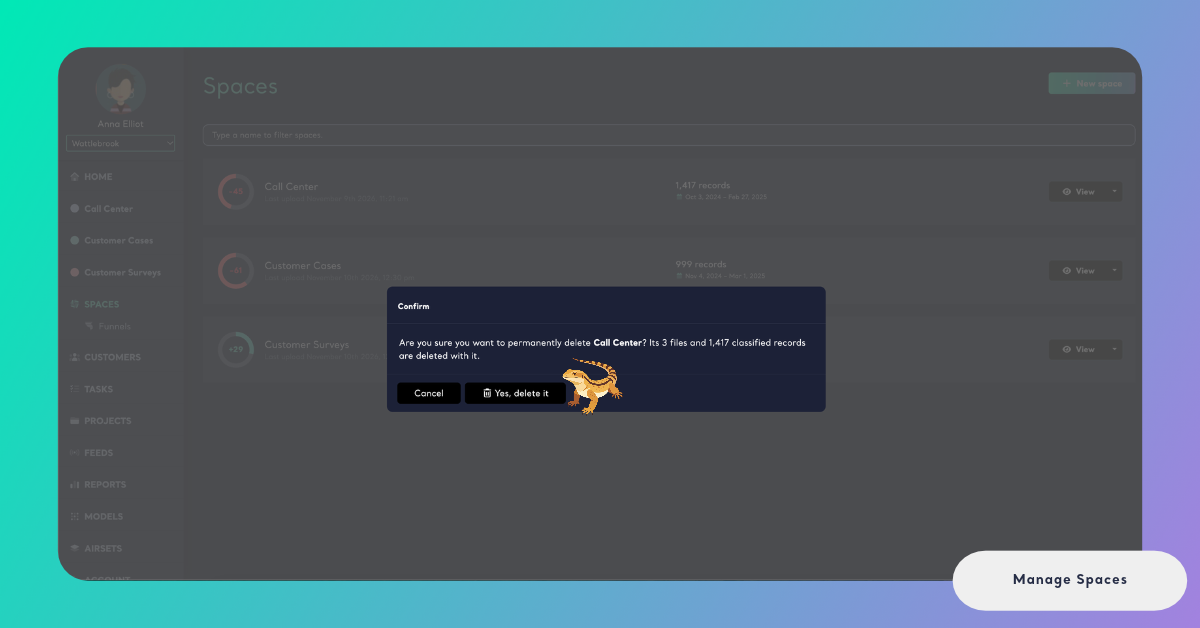
When the Space is deleted, the page says that it "is deleted" and the Space disappears from the list and from the main menu. Its files and their classified records are deleted, and so are the Space's Signals, Insights and Action Plans. Home, which shows all your Spaces together, and your Departments no longer count its feedback. If the Space can't be deleted, the page shows "The space could not be deleted, please try again."
Tasks made from the Space's feedback are not deleted. They stay under Tasks with their title, description, assignee and comments, but they no longer belong to a Space.
If a task was only about the deleted channel, set it to Done or Won't do so it doesn't stay open.
The Funnel the Space used is not deleted, and neither are its models. Other Spaces can keep using the Funnel. A Funnel can't be deleted while a Space uses it, so deleting the last Space of a Funnel is what lets you delete that Funnel. See What is a Funnel?
Delete a Space only when you no longer need the channel at all. When a single wrong file went in, take that file back instead: the Space keeps its other files, and its counts, NPS, Signals and Insights are worked out again without the wrong one. See Take Back a File from a Space.